
Reviews
Sus gráficos añaden un toque agradable a mis presentaciones y recientemente los usé para una de mis reuniones generales. Su conjunto de herramientas añade profesionalismo a mis diapositivas. En lugar de usar imágenes prediseñadas estándar.
Necesitaba un aspecto fresco para algunas de mis diapositivas. Había intentado encontrar una forma de crear un efecto de pincel, de subrayar, acentuar, añadir algo de color y los marcadores escritos a mano fueron justo lo que necesitaba. Muy fácil de usar, fácil de ajustar el tamaño, cambiar el color. Fue una solución asequible y perfecta, y estoy feliz de recomendarla.
El aspecto nítido y limpio de los gráficos, y el hecho de que me permitiera editar y cambiar fácilmente los colores para que coincidieran con la plantilla fue mi principal razón para comprarlos.
Description
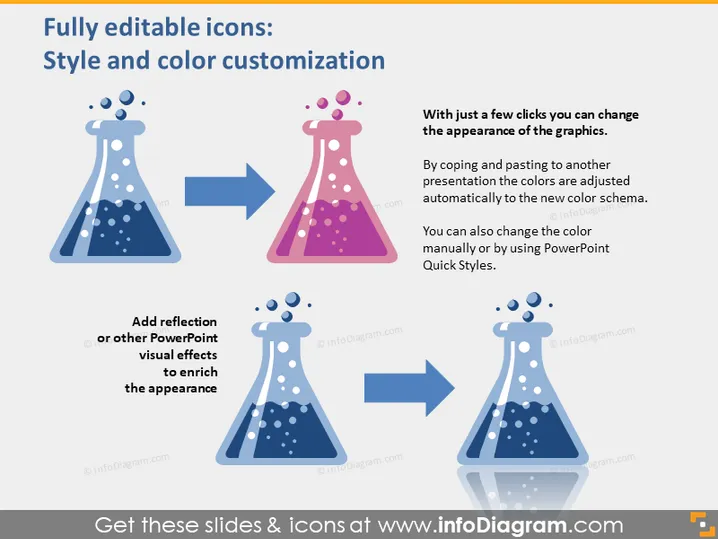
Fully editable icons: Style and color customization
Slide Content
The slide demonstrates the ability to customize the style and color of icons in presentations. It highlights that with a few clicks, the appearance of graphics can be altered. Users can either adjust colors automatically by copying and pasting icons into a new presentation with a different color scheme, or manually change the color with PowerPoint Quick Styles. Additionally, the slide suggests adding PowerPoint visual effects, like reflections, to enhance the appearance of the icons.
Graphical Look
- Two sets of Erlenmeyer flask icons, one set on the left and one set on the right, showing before and after customization.
- Each set of flasks contains two examples, with the second flask in each set having a reflection effect.
- Large rightward-facing blue arrows are used to indicate the direction of change from the default style to the customized style.
- Text blocks accompany each visual element detailing customization processes like "With just a few clicks you can change the appearance of the graphics."
- The background color is a light neutral shade with a slightly darker banner at the bottom of the slide.
The slide has a clean, professional look with a simple color palette that emphasizes the contrast between the original and customized icons. The use of arrows visually guides the viewer through the customization process.
Use Cases
- Demonstrating icon customization capabilities during a presentation tool training session.
- Explaining the benefits of brand consistency by showing color adjustments to different elements of a presentation.
- Incorporating into a sales pitch for presentation design services to highlight the flexibility of design offerings.
- Using in a workshop on improving visual communication, with a focus on enhancing viewer engagement through custom graphics.
How to Edit
How to edit text & colors

How to expand / shorten diagram

How to Replace Icons in infoDiagram PPT


