
Reviews
Vos graphiques ajoutent une belle touche à mes présentations et je les ai récemment utilisés pour l'une de mes réunions générales. Votre boîte à outils ajoute du professionnalisme à mes diapositives. Au lieu d'utiliser des cliparts standards.
J'avais besoin d'un nouveau regard sur certaines de mes diapositives. J'ai essayé de trouver un moyen de créer un effet de pinceau, de souligner, d'accentuer, d'ajouter de la couleur et les marqueurs manuscrits étaient exactement ce qu'il fallait. Très facile à utiliser, facile à ajuster la taille, à changer la couleur. C'était une solution abordable et parfaite et je suis heureux de la recommander.
L'aspect net et épuré des graphiques, et le fait qu'il m'ait permis d'éditer et de changer facilement les couleurs pour les adapter au modèle, ont été les principales raisons de mon achat.
Description
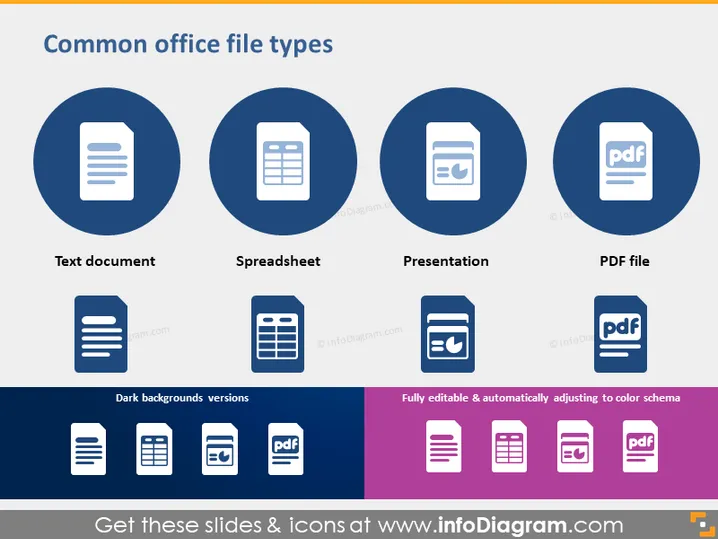
Common office file types
Slide Content
The PowerPoint slide presents a representation of various common office file types, each depicted with a distinctive icon. There are four main categories: Text document, Spreadsheet, Presentation, and PDF file. "Text document" typically refers to files containing plain or formatted text. "Spreadsheet" denotes files used for organizing data in tables. "Presentation" suggests a format used for creating slideshows. Lastly, "PDF file" represents a Portable Document Format, which is widely used for distributing read-only documents.
Graphical Look
- Four large blue circles, each enclosing a white icon representing different file types.
- Below each large circle is a smaller icon with the same design for dark backgrounds.
- The large icons are labeled with their corresponding file type below them in bold text.
- To the right, a column showcases smaller icons of the same types, demonstrating their color adaptability.
- The color palette alternates between blue, dark blue, and shades of purple.
- Background of the slide is a solid, neutral color.
The slide has a clean and professional design with a well-structured layout. The use of circles to highlight the icons makes them stand out and easily identifiable.
Use Cases
- Introducing new employees to the types of documents they will encounter in the workplace.
- Training sessions on document management systems and practices.
- Creating instructional material for software related to office productivity.
- Overview presentations about document formats for a technical audience or in an educational setting.
How to Edit
How to edit text & colors

How to expand / shorten diagram

How to Replace Icons in infoDiagram PPT


