
Reviews
Ihre Grafiken verleihen meinen Präsentationen eine nette Note, und ich habe sie kürzlich für eines meiner All-Hands-Meetings verwendet. Ihre Toolbox verleiht meinen Folien Professionalität, anstatt Standard-Clipart zu verwenden.
Ich brauchte einen neuen Blick auf einige meiner Folien. Ich habe versucht, einen Weg zu finden, einen Pinselschlag-Effekt zu erzielen, um zu unterstreichen, hervorzuheben, Farbe hinzuzufügen, und die handgeschriebenen Markierungen waren genau das Richtige. Sehr einfach zu bedienen, leicht in der Größe zu ändern, die Farbe zu ändern. Es war eine erschwingliche, perfekte Lösung und ich empfehle sie gerne weiter.
Die klare, saubere Optik der Grafiken und die Tatsache, dass ich die Farben leicht bearbeiten und an die Vorlage anpassen konnte, war mein Hauptgrund für den Kauf.
Description
How to use
Slide Content
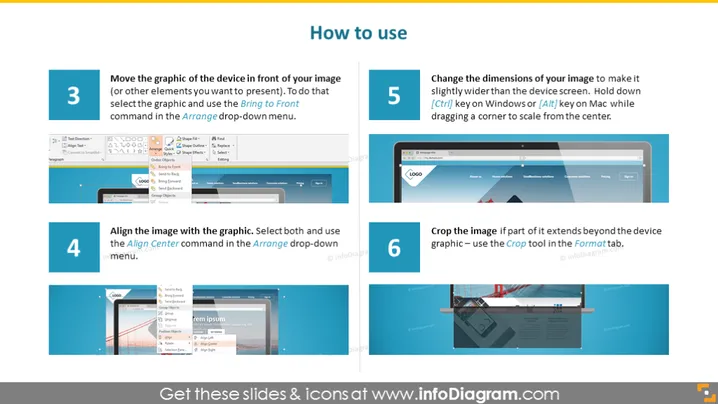
The PowerPoint slide titled "How to use" provides a step-by-step guide on arranging graphics and images in presentation slides. Step 3 instructs moving the device graphic in front of other elements using the 'Bring to Front' command from the 'Arrange' menu. This helps prioritize what viewers see first. Step 4 suggests aligning the image with the graphic using the 'Align Center' command, ensuring images are centered with respect to other elements. Step 5 advises changing the dimensions of an image so that it is slightly wider than the device screen, recommending the use of shortcut keys for efficient resizing. Step 6 is about cropping the image if it overextends the device graphic by using the 'Crop Tool' in the 'Format' tab, enabling a cleaner fit within the slide's design.
Graphical Look
- The slide has a light blue background with dark blue rectangles at the top and bottom, creating a banner-like effect.
- Each step is numbered with a large white numeral inside a dark blue circle, providing a clear step progression.
- Beneath each step's number, there is a title in bold white font followed by instructional text in a smaller, regular white font which is clear and readable.
- To the left of each text instruction, there is a corresponding screenshot showing the described action being taken within the PowerPoint interface, which visually reinforces the written steps.
- Each screenshot is contained within a shadowed white rectangle to simulate a computer screen or window.
The overall look is clean and professional, with a tech-savvy blue color scheme that is consistent throughout the slide. The visuals are well-organized and complement the step-by-step instructions, making the slide informative and user-friendly.
Use Cases
- In an instructional presentation to teach staff or students how to optimize images in PowerPoint for a professional presentation.
- During a workshop on presentation design, as a detailed visual aid for explaining image manipulation within slides.
- As part of an online tutorial or webinar content, where the presenters demonstrate PowerPoint functions and design best practices.
- In a company's internal training materials to standardize the way presentations are created by various team members.
How to Edit
How to edit text & colors

How to expand / shorten diagram

How to Replace Icons in infoDiagram PPT


