
Reviews
Your graphics add a nice touch to my presentations and I recently used them for one of my all-hands meetings. Your toolbox adds professionalism to my slides. Instead of using standard clipart.
I needed a fresh look at some of my slides. I've tried to find a way to create a paintbrush effect, to underline, accentuate, add some color and the handwritten markers were just the things. Very easy to use, easy to size, change the color. It was an affordable, perfect solution and I'm happy to recommend it.
The crisp, clean look of the graphics, and the fact that it allowed me to easily edit and change the colors to match the template was my main reason for purchasing them.
Description
How to use
Slide Content
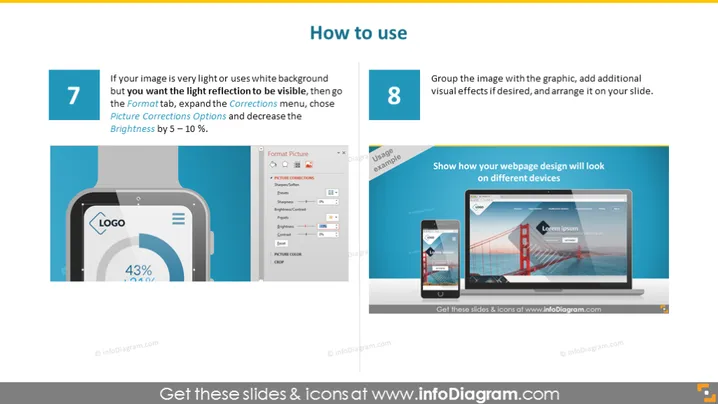
The PowerPoint slide showcases steps 7 and 8 in a sequence about image handling for presentations. Step 7 details how to adjust light reflection on images with light or white backgrounds by modifying brightness in the Corrections menu, which can enhance visibility. Step 8 advises grouping the image with other graphic elements, adding visual effects, and arranging them on a slide, implying customization and aesthetic improvement for the presentation.
Graphical Look
- Two main content blocks, each with a numbered title, instruction text, and a representative icon or image.
- The left block features the number 7, light blue background, and includes a stylized mobile device with a semi-transparent overlay.
- The right block features the number 8, dark blue background, and displays a laptop and a tablet showing a responsive web design.
- Both blocks have white text for instructions and titles.
- Background of the slide is faded grey allowing the blue content blocks to stand out.
- Simple, clean lines and flat design elements throughout the slide.
- The icons and text are arranged in a way that visually balances the left and right sides.
The overall look is modern and clean, with a good contrast that makes the content easily readable. The design elements suggest a technology or web-related theme.
Use Cases
- Presenting website design and development processes, showcasing responsive design across devices.
- Teaching best practices for enhancing presentations with image adjustments and graphic alignments.
- Illustrating step-by-step tutorials or guidelines for digital content creation or software usage.
- Strategic business presentations to highlight the importance of visual appeal in marketing materials.
How to Edit
How to edit text & colors

How to expand / shorten diagram

How to Replace Icons in infoDiagram PPT


