
Reviews
Sus gráficos añaden un toque agradable a mis presentaciones y recientemente los usé para una de mis reuniones generales. Su conjunto de herramientas añade profesionalismo a mis diapositivas. En lugar de usar imágenes prediseñadas estándar.
Necesitaba un aspecto fresco para algunas de mis diapositivas. Había intentado encontrar una forma de crear un efecto de pincel, de subrayar, acentuar, añadir algo de color y los marcadores escritos a mano fueron justo lo que necesitaba. Muy fácil de usar, fácil de ajustar el tamaño, cambiar el color. Fue una solución asequible y perfecta, y estoy feliz de recomendarla.
El aspecto nítido y limpio de los gráficos, y el hecho de que me permitiera editar y cambiar fácilmente los colores para que coincidieran con la plantilla fue mi principal razón para comprarlos.
Description
How to use
Slide Content
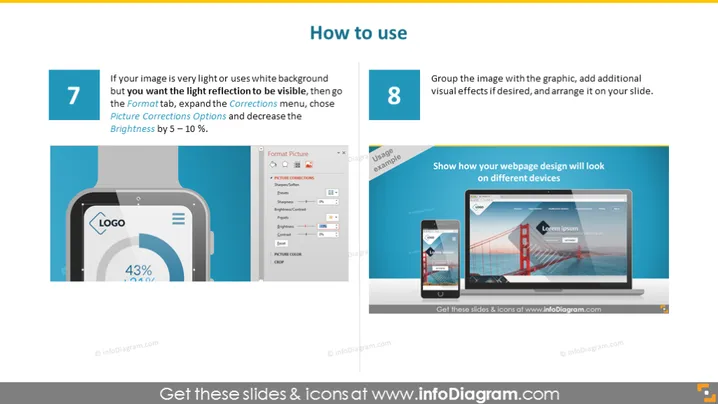
The PowerPoint slide showcases steps 7 and 8 in a sequence about image handling for presentations. Step 7 details how to adjust light reflection on images with light or white backgrounds by modifying brightness in the Corrections menu, which can enhance visibility. Step 8 advises grouping the image with other graphic elements, adding visual effects, and arranging them on a slide, implying customization and aesthetic improvement for the presentation.
Graphical Look
- Two main content blocks, each with a numbered title, instruction text, and a representative icon or image.
- The left block features the number 7, light blue background, and includes a stylized mobile device with a semi-transparent overlay.
- The right block features the number 8, dark blue background, and displays a laptop and a tablet showing a responsive web design.
- Both blocks have white text for instructions and titles.
- Background of the slide is faded grey allowing the blue content blocks to stand out.
- Simple, clean lines and flat design elements throughout the slide.
- The icons and text are arranged in a way that visually balances the left and right sides.
The overall look is modern and clean, with a good contrast that makes the content easily readable. The design elements suggest a technology or web-related theme.
Use Cases
- Presenting website design and development processes, showcasing responsive design across devices.
- Teaching best practices for enhancing presentations with image adjustments and graphic alignments.
- Illustrating step-by-step tutorials or guidelines for digital content creation or software usage.
- Strategic business presentations to highlight the importance of visual appeal in marketing materials.
How to Edit
How to edit text & colors

How to expand / shorten diagram

How to Replace Icons in infoDiagram PPT


