
Reviews
Sus gráficos añaden un toque agradable a mis presentaciones y recientemente los usé para una de mis reuniones generales. Su conjunto de herramientas añade profesionalismo a mis diapositivas. En lugar de usar imágenes prediseñadas estándar.
Necesitaba un aspecto fresco para algunas de mis diapositivas. Había intentado encontrar una forma de crear un efecto de pincel, de subrayar, acentuar, añadir algo de color y los marcadores escritos a mano fueron justo lo que necesitaba. Muy fácil de usar, fácil de ajustar el tamaño, cambiar el color. Fue una solución asequible y perfecta, y estoy feliz de recomendarla.
El aspecto nítido y limpio de los gráficos, y el hecho de que me permitiera editar y cambiar fácilmente los colores para que coincidieran con la plantilla fue mi principal razón para comprarlos.
Description
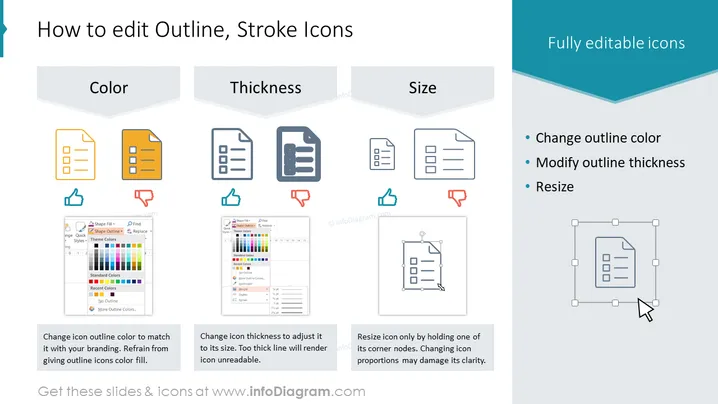
How to edit Outline, Stroke Icons
Slide Content: The PowerPoint slide is titled "How to edit Outline, Stroke Icons" and it outlines how to modify fully editable icons, focusing on three main aspects: color, thickness, and size. For color, it suggests changing the icon's outline color to match your branding and advises caution not to give outline icons a color fill. The thickness section advises adjusting icon thickness to suit its size, cautioning that too thick a line can make the icon unreadable. Finally, the size section recommends resizing the icon by holding one of its corner nodes and warns that changing icon proportions may harm its clarity.
Graphical Look:
- The slide background is white with a large turquoise header band at the top and a gentle downward curve at the bottom of the band.
- The title of the slide is presented in dark blue, bold, large font size in the header band.
- Three main columns divide the slide content, each with a heading: "Color," "Thickness," and "Size," written in grey and placed on a raised, angled tab graphic.
- Each column contains a pair of icons, one above the other, depicting documents with varying outline colors, thickness, and a resizing graphic, respectively.
- Below the icons in each column is a small screenshot demonstrating the corresponding editing action in the PowerPoint interface.
- There are annotations in red and blue next to the screenshots elaborating on the process or providing tips.
- The bottom of the slide has a slogan stating, "Get these slides & icons at www.infoDiagram.com" in a dark font.
- To the right below the header band is a boxed text with the headline "Fully editable icons" followed by bullet points listing the actions: "Change outline color," "Modify outline thickness," and "Resize."
The overall look of the slide is clean and educational, with a clear separation of sections and practical visuals in coordination with the instructional text. The use of icons and screenshots effectively supports the instructional nature of the content.
Use Cases:
- In a workshop teaching graphic design principles, particularly focusing on iconography and its editing for brand consistency.
- During an employee training session for a new company branding strategy, illustrating how to adjust marketing materials.
- As part of an instructional presentation for a software tool that has been updated with new editing features.
How to Edit
How to edit text & colors

How to expand / shorten diagram

How to Replace Icons in infoDiagram PPT


