
Reviews
Sus gráficos añaden un toque agradable a mis presentaciones y recientemente los usé para una de mis reuniones generales. Su conjunto de herramientas añade profesionalismo a mis diapositivas. En lugar de usar imágenes prediseñadas estándar.
Necesitaba un aspecto fresco para algunas de mis diapositivas. Había intentado encontrar una forma de crear un efecto de pincel, de subrayar, acentuar, añadir algo de color y los marcadores escritos a mano fueron justo lo que necesitaba. Muy fácil de usar, fácil de ajustar el tamaño, cambiar el color. Fue una solución asequible y perfecta, y estoy feliz de recomendarla.
El aspecto nítido y limpio de los gráficos, y el hecho de que me permitiera editar y cambiar fácilmente los colores para que coincidieran con la plantilla fue mi principal razón para comprarlos.
Description
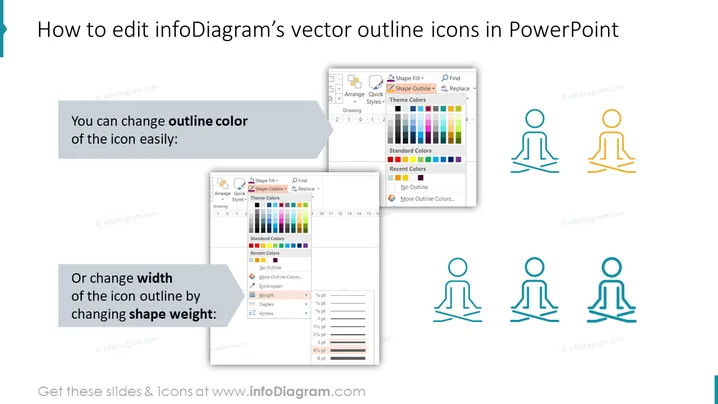
How to edit infoDiagram’s vector outline icons in PowerPoint
Slide Content
The slide provides a step-by-step tutorial on customizing vector outline icons in PowerPoint. It explains how to adjust the outline color and shape weight of icons. The "outline color" section shows using PowerPoint's color picker to select a new color for an icon, revealing the ease of adding customization to match a presentation's theme. The "shape weight" part demonstrates how to alter the icon's outline thickness, indicating the ability to emphasize or de-emphasize elements visually.
Graphical Look
- A light-colored title bar with dark text at the top of the slide announces the topic.
- Two instructional blocks, consisting of a colored background text box with white lettering, provide the customization steps.
- Each instructional block is accompanied by a screenshot illustrating the step, showing the PowerPoint interface.
- A series of identical stick figure icons displayed in a horizontal line shows the effect of color changes.
- A second set of these icons beneath shows the impact of altering the outline thickness.
- These icons are initially colored light blue in the background, with the forefront icons experiencing changes in color and thickness.
The slide is aesthetically pleasing and utilizes a clean, professional layout with a balanced combination of visual and textual information to enhance understanding.
Use Cases
- Training materials for teaching basic PowerPoint editing techniques.
- An instructional slide within a workshop on graphic design in presentation software.
- Slide deck for a webinar on enhancing visual elements in corporate presentations.
- A quick reference guide embedded in an internal company presentation toolkit for employees creating their presentations.
How to Edit
How to edit text & colors

How to expand / shorten diagram

How to Replace Icons in infoDiagram PPT


