

Your graphics add a nice touch to my presentations and I recently used them for one of my all-hands meetings. Your toolbox adds professionalism to my slides. Instead of using standard clipart.
Claude Jones, Director of Engineer, @Walmartlabs, USA

Your graphics add a nice touch to my presentations and I recently used them for one of my all-hands meetings. Your toolbox adds professionalism to my slides. Instead of using standard clipart.
Claude Jones, Director of Engineer, @Walmartlabs, USA
I needed a fresh look at some of my slides. I've tried to find a way to create a paintbrush effect, to underline, accentuate, add some color and the handwritten markers were just the things. Very easy to use, easy to size, change the color. It was an affordable, perfect solution and I'm happy to recommend it.
Anonymous, US
The crisp, clean look of the graphics, and the fact that it allowed me to easily edit and change the colors to match the template was my main reason for purchasing them.
Brandie Jenkins, E-learning Developer, USA
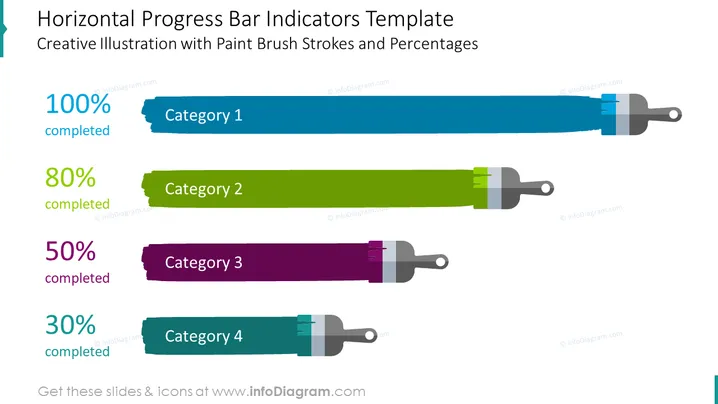
The PowerPoint slide titled "Horizontal Progress Bar Indicators Template" showcases a creative illustration with paintbrush strokes to represent different categories and their respective completion percentages. Category 1 is marked as 100% complete, suggesting full completion in a vibrant blue tone. Category 2 shows 80% completion with a fresh green brushstroke, indicating near-completion. Category 3 is at the halfway mark with 50% completion in a rich purple hue, while Category 4 displays just 30% completion in teal, signaling the beginning stages of progress.
The overall look of the slide is modern and engaging, using creative elements to represent data visually. The paintbrush graphics serve as a unique approach to displaying progress, making the information easily digestible and eye-catching.



