

Your graphics add a nice touch to my presentations and I recently used them for one of my all-hands meetings. Your toolbox adds professionalism to my slides. Instead of using standard clipart.
Claude Jones, Director of Engineer, @Walmartlabs, USA

Your graphics add a nice touch to my presentations and I recently used them for one of my all-hands meetings. Your toolbox adds professionalism to my slides. Instead of using standard clipart.
Claude Jones, Director of Engineer, @Walmartlabs, USA
I needed a fresh look at some of my slides. I've tried to find a way to create a paintbrush effect, to underline, accentuate, add some color and the handwritten markers were just the things. Very easy to use, easy to size, change the color. It was an affordable, perfect solution and I'm happy to recommend it.
Anonymous, US
The crisp, clean look of the graphics, and the fact that it allowed me to easily edit and change the colors to match the template was my main reason for purchasing them.
Brandie Jenkins, E-learning Developer, USA
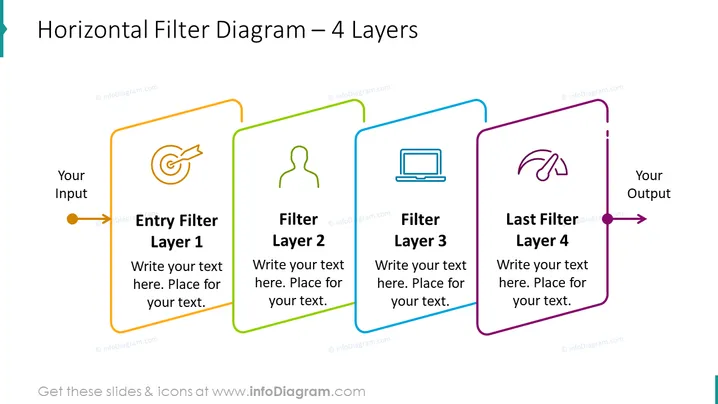
The slide represents a four-stage filtering process, starting with 'Your Input', passing through four distinct filters — Entry Filter Layer 1, Filter Layer 2, Filter Layer 3, and Last Filter Layer 4 — and ending with 'Your Output'. Each filter layer is denoted by a distinct icon: a target for Entry Filter (suggesting aim or precision), a person's silhouette for Filter Layer 2 (perhaps indicating individual or demographic targeting), a laptop for Filter Layer 3 (representing technological processing or analysis), and a Wi-Fi signal for Last Filter Layer 4 (signifying connectivity or final transmission).
The visual composition is clean and modern, with a clear linear progression indicated by the arrows connecting the filters. The use of color and iconic imagery effectively differentiates between the stages of the process.



