
Reviews
Sus gráficos añaden un toque agradable a mis presentaciones y recientemente los usé para una de mis reuniones generales. Su conjunto de herramientas añade profesionalismo a mis diapositivas. En lugar de usar imágenes prediseñadas estándar.
Necesitaba un aspecto fresco para algunas de mis diapositivas. Había intentado encontrar una forma de crear un efecto de pincel, de subrayar, acentuar, añadir algo de color y los marcadores escritos a mano fueron justo lo que necesitaba. Muy fácil de usar, fácil de ajustar el tamaño, cambiar el color. Fue una solución asequible y perfecta, y estoy feliz de recomendarla.
El aspecto nítido y limpio de los gráficos, y el hecho de que me permitiera editar y cambiar fácilmente los colores para que coincidieran con la plantilla fue mi principal razón para comprarlos.
Description
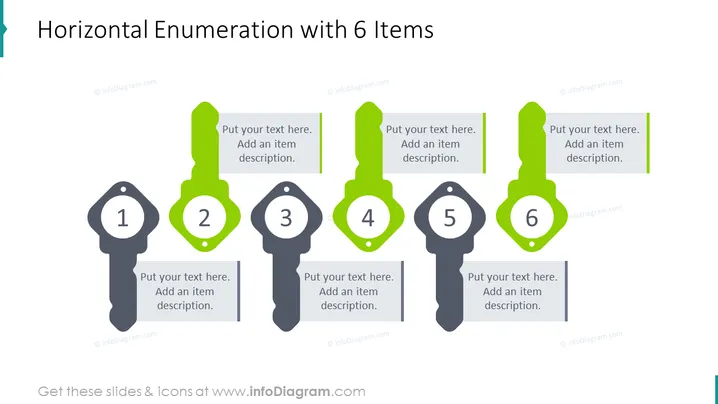
Horizontal Enumeration with 6 Items
Slide Content
The PowerPoint slide is structured to showcase a horizontal enumeration of six items, convenient for outlining steps in a process or presenting a series of related elements. Each item is numbered from 1 to 6, with a corresponding space for text where additional details can be provided. This format is conducive for illustrating sequences, checklists, or displaying distinct characteristics within a category, intended to offer an organized visual cue to the viewer.
Graphical Look
- Six key-shaped infographic icons aligned horizontally across the slide.
- The icons are alternating in color, with the odd numbers in a lighter shade and the even numbers in a more vibrant green.
- Each key icon has a large number at the top, clearly indicating the sequence from 1 to 6.
- Alongside each key icon is a text box with a prompt to "Put your text here. Add an item description."
- The text boxes are styled to complement the color of the adjacent key icon.
- The design of the slide is clean, with a lot of white space to prevent clutter and maintain focus on the enumerated items.
The slide has a professional and modern look, with a creative twist using key-shaped icons to attract attention and guide the viewer through the content. The alternation of colors helps in differentiating each step, making the infographic effective for visual storytelling.
Use Cases
- Illustrating steps in a business process or workflow during a presentation.
- Presenting a list of product features or benefits in a marketing pitch.
- Outlining a company's strategic priorities or action plan in a management meeting.
- Summarizing the phases of a project or a timeline in project management overviews.
How to Edit
How to edit text & colors

How to expand / shorten diagram

How to Replace Icons in infoDiagram PPT


