
Reviews
Your graphics add a nice touch to my presentations and I recently used them for one of my all-hands meetings. Your toolbox adds professionalism to my slides. Instead of using standard clipart.
I needed a fresh look at some of my slides. I've tried to find a way to create a paintbrush effect, to underline, accentuate, add some color and the handwritten markers were just the things. Very easy to use, easy to size, change the color. It was an affordable, perfect solution and I'm happy to recommend it.
The crisp, clean look of the graphics, and the fact that it allowed me to easily edit and change the colors to match the template was my main reason for purchasing them.
Description
To show synergy use Venn diagram
Slide Content
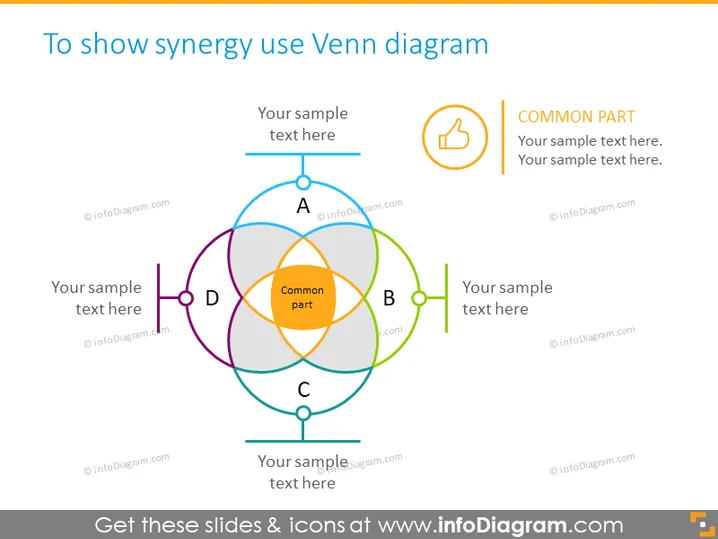
The PowerPoint slide illustrates how to depict synergy using a Venn diagram. It showcases a central overlapping area labeled "Common part," which signifies the synergy among four different items, A, B, C, and D. Around this intersecting center, there are placeholders for text related to each item. These labels provide space for expanding on what each concept means and how they collectively contribute to the "Common part," demonstrating their interconnectedness and the combined effect they produce.
Graphical Look
- A large, colorful Venn diagram occupies the center of the slide, with overlapping circles in blue, purple, green, and gray.
- Each circle is labeled with a letter (A, B, C, or D), indicating different elements or ideas.
- The center of the Venn diagram is highlighted in orange, indicating the "Common part" or synergy between the elements.
- Four text boxes are arranged around the Venn diagram, each correlating with a respective section of the diagram (A, B, C, or D).
- Each text box has a corresponding colored dot and a line connecting it to its section of the Venn diagram.
- One additional text box to the right of the Venn diagram, highlighted with an orange border, elaborates on the "COMMON PART."
- To the upper right corner of the slide, there's a power button icon encased in a circle, also connected with a text box.
The slide has a clean, professional look with a balanced use of colors that correspond to the sections of the Venn diagram. The main focus is on the diagram itself, and the text boxes are strategically placed to facilitate an easy understanding of the content.
Use Cases
- Presenting a business strategy where different departments or products overlap and contribute to a shared goal.
- Demonstrating the benefits of a merger or partnership between companies, emphasizing the value of combined efforts.
- Illustrating the intersection of various skills or competencies in a team and how they contribute to a project.
- Analyzing market trends where different consumer segments share common interests or behaviors.
How to Edit
How to edit text & colors

How to expand / shorten diagram

How to Replace Icons in infoDiagram PPT


