

Your graphics add a nice touch to my presentations and I recently used them for one of my all-hands meetings. Your toolbox adds professionalism to my slides. Instead of using standard clipart.
Claude Jones, Director of Engineer, @Walmartlabs, USA

Your graphics add a nice touch to my presentations and I recently used them for one of my all-hands meetings. Your toolbox adds professionalism to my slides. Instead of using standard clipart.
Claude Jones, Director of Engineer, @Walmartlabs, USA
I needed a fresh look at some of my slides. I've tried to find a way to create a paintbrush effect, to underline, accentuate, add some color and the handwritten markers were just the things. Very easy to use, easy to size, change the color. It was an affordable, perfect solution and I'm happy to recommend it.
Anonymous, US
The crisp, clean look of the graphics, and the fact that it allowed me to easily edit and change the colors to match the template was my main reason for purchasing them.
Brandie Jenkins, E-learning Developer, USA
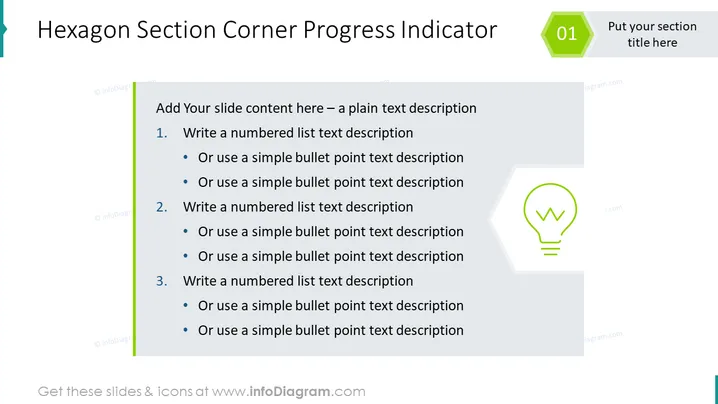
This PowerPoint slide is titled "Hexagon Section Corner Progress Indicator" and features placeholders for content and a section title. The slide consists of a three-part numbered list, with each primary point allowing for further bullet point elaboration. This structure supports detailed segmentation of information within a larger framework, represented by the hexagon-shaped progress indicator, which can track progress through a series of such slides.
The slide has a clean, professional look with a green and grey color scheme providing a sense of calm and order. The use of the hexagon shape creates a motif that visually unites the slide elements and indicates progression or steps in a process.



