
Reviews
Ihre Grafiken verleihen meinen Präsentationen eine nette Note, und ich habe sie kürzlich für eines meiner All-Hands-Meetings verwendet. Ihre Toolbox verleiht meinen Folien Professionalität, anstatt Standard-Clipart zu verwenden.
Ich brauchte einen neuen Blick auf einige meiner Folien. Ich habe versucht, einen Weg zu finden, einen Pinselschlag-Effekt zu erzielen, um zu unterstreichen, hervorzuheben, Farbe hinzuzufügen, und die handgeschriebenen Markierungen waren genau das Richtige. Sehr einfach zu bedienen, leicht in der Größe zu ändern, die Farbe zu ändern. Es war eine erschwingliche, perfekte Lösung und ich empfehle sie gerne weiter.
Die klare, saubere Optik der Grafiken und die Tatsache, dass ich die Farben leicht bearbeiten und an die Vorlage anpassen konnte, war mein Hauptgrund für den Kauf.
Description
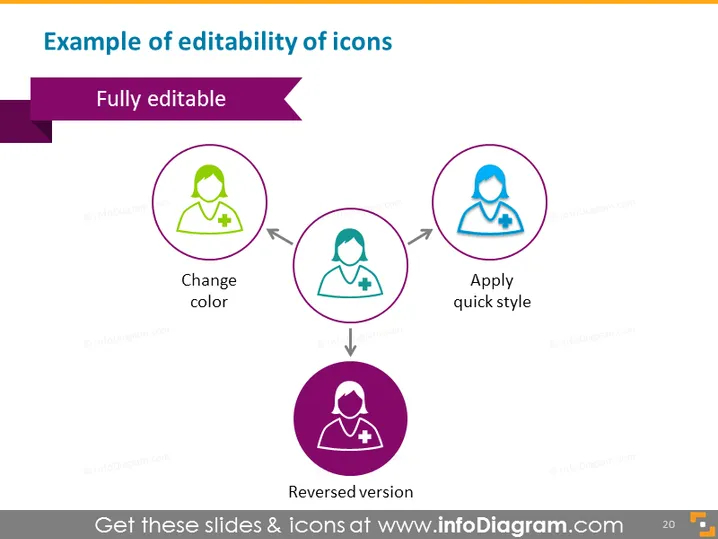
Example of editability of icons
Slide Content
The PowerPoint slide presents the concept of icon editability. It showcases three different states of an icon to demonstrate its customizable features: color change, quick style application, and a reversed version. "Change color" indicates that the icon's primary color can be altered, "Apply quick style" suggests that predefined styles can be applied for immediate visual changes, and "Reversed version" shows the icon with inverted colors, enhancing contrast and visual impact.
Graphical Look
- A bold purple ribbon banner with the slide title "Fully editable" in white text.
- Three circular icons, each enclosed within a thin purple outline.
- The leftmost icon is lime green, representing the "Change color" editable feature.
- The center icon is light blue to illustrate the "Apply quick style" feature.
- The third icon is purple, displaying the "Reversed version" feature; it also has a thicker border.
- Grey arrows connecting the icons, implying progression or options for editing.
- The two descriptive text labels, "Change color" and "Reversed version," are placed below their respective icons in black.
- The label "Apply quick style" is placed to the right of the center icon, also in black.
The overall look is clean and professional, with high contrast and clear indications of the editable features of the icons. The colored icons stand out against a white background, making the information easily digestible.
Use Cases
- To demonstrate software features that allow users to customize visual elements within the program.
- In graphic design or template presentations to show the versatility of assets provided.
- For instructional purposes, explaining how to edit icons in a user interface or document.
- During a marketing pitch for design tools, illustrating the customization capabilities to potential clients.
How to Edit
How to edit text & colors

How to expand / shorten diagram

How to Replace Icons in infoDiagram PPT


