
Reviews
Ihre Grafiken verleihen meinen Präsentationen eine nette Note, und ich habe sie kürzlich für eines meiner All-Hands-Meetings verwendet. Ihre Toolbox verleiht meinen Folien Professionalität, anstatt Standard-Clipart zu verwenden.
Ich brauchte einen neuen Blick auf einige meiner Folien. Ich habe versucht, einen Weg zu finden, einen Pinselschlag-Effekt zu erzielen, um zu unterstreichen, hervorzuheben, Farbe hinzuzufügen, und die handgeschriebenen Markierungen waren genau das Richtige. Sehr einfach zu bedienen, leicht in der Größe zu ändern, die Farbe zu ändern. Es war eine erschwingliche, perfekte Lösung und ich empfehle sie gerne weiter.
Die klare, saubere Optik der Grafiken und die Tatsache, dass ich die Farben leicht bearbeiten und an die Vorlage anpassen konnte, war mein Hauptgrund für den Kauf.
Description
How to use
Slide Content
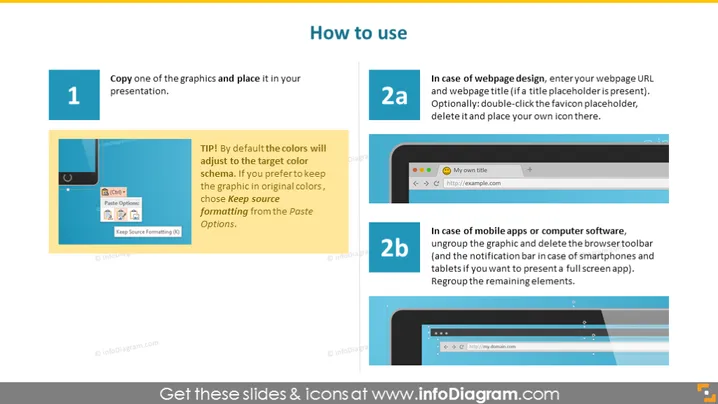
The PowerPoint slide presents instructions on "How to use" certain graphics within a presentation. There are three distinct sections, each numbered: 1, 2a, and 2b. The first section advises to copy a graphic and place it in your presentation and points out that colors will adjust to the target color scheme with an option to keep the original formatting. The second section, marked as '2a,' discusses webpage design, suggesting where to enter webpage URL and title. '2b' addresses the use in mobile apps or computer software, detailing how to modify graphics for full-screen app presentations.
Graphical Look
- Background color is a light blue, providing a neutral and calming canvas for the content.
- A large, bold title in the upper right corner in dark blue font.
- Three main content boxes with white backgrounds and a light shadow effect to create the appearance of depth.
- Large, teal-colored numbers '1', '2a', and '2b' are used to enumerate the steps, positioned in colored circles to the left of corresponding text boxes.
- Text descriptions inside each content box are in black font. The text is broken into bullet points where necessary for clarity.
- Small graphic examples inside the content boxes illustrate the text's point, such as an image of a copy-and-paste drop menu and browser windows.
- The bullet points within the content boxes are accompanied by small teal-colored circles.
- Each content box features a small visual hint: a mouse icon for the first, a web browser for the second, and a mobile phone and cursor for the third.
The overall look is clean and professional, with a color scheme that promotes focus and comprehension. The slide's design utilizes symbols effectively to aid in visual learning.
Use Cases
- Presenting guidelines for incorporating graphics into business presentations.
- Training employees on consistent formatting within company presentations.
- Explaining how to effectively use graphic assets in web design during a web design workshop.
- Demonstrating the adaptation of graphics for different platforms, such as desktop and mobile applications, in a UX/UI design course.
How to Edit
How to edit text & colors

How to expand / shorten diagram

How to Replace Icons in infoDiagram PPT


