
Reviews
Your graphics add a nice touch to my presentations and I recently used them for one of my all-hands meetings. Your toolbox adds professionalism to my slides. Instead of using standard clipart.
I needed a fresh look at some of my slides. I've tried to find a way to create a paintbrush effect, to underline, accentuate, add some color and the handwritten markers were just the things. Very easy to use, easy to size, change the color. It was an affordable, perfect solution and I'm happy to recommend it.
The crisp, clean look of the graphics, and the fact that it allowed me to easily edit and change the colors to match the template was my main reason for purchasing them.
Description
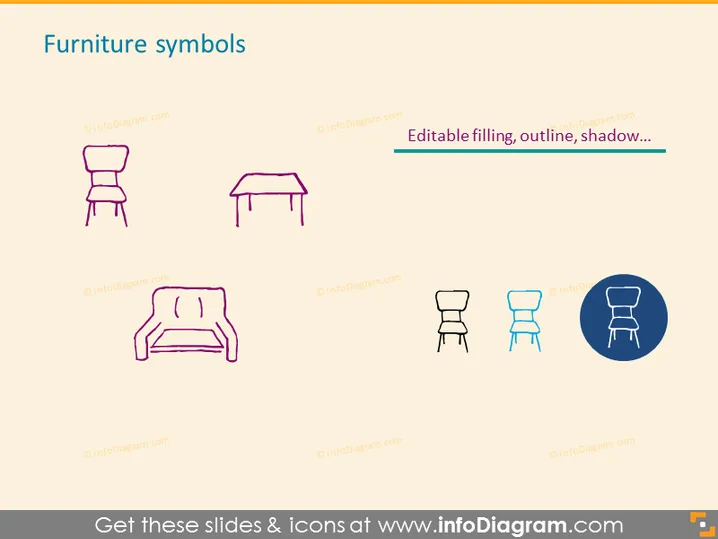
Furniture symbols
Slide Content
The slide titled "Furniture symbols" presents a collection of simplistic graphical representations, said to be editable in terms of filling, outline, shadow, etc. The icons depict common furniture items: a standard chair, a table, a sofa, and a chair with a distinct design. These symbols serve as a visual shorthand for various pieces of furniture, each potentially signifying a particular style or functionality within the context of interior design or space planning.
Graphical Look
- The background of the slide is a clear, solid color.
- The slide title "Furniture symbols" is prominently displayed in a larger, bold font at the top.
- Four furniture icon representations are aligned horizontally across the slide.
- Each icon is represented in a different style: one is filled in solid, one is outlined, and the others are in varying colors, indicating the editability of these elements.
- A descriptive text right aligned above the icons, "Editable filling, outline, shadow...", further explains the customizability of the icons.
- The last icon on the right is encircled within a colored circle background, denoting selection or emphasis on that particular figure.
The slide has a minimalist design with a focus on clarity and ease of understanding. The use of different presentations for the furniture icons demonstrates the versatility of the graphics for customization.
Use Cases
- Presenting interior design concepts to clients, illustrating different furniture options.
- Creating a space planning presentation for a new office layout, where furniture placement is key.
- Utilizing in retail or manufacturing settings to showcase different product designs without using photographs.
- Incorporating into educational materials for design or architecture courses to teach students about different types of furniture and their uses.
How to Edit
How to edit text & colors

How to expand / shorten diagram

How to Replace Icons in infoDiagram PPT


