
Reviews
Ihre Grafiken verleihen meinen Präsentationen eine nette Note, und ich habe sie kürzlich für eines meiner All-Hands-Meetings verwendet. Ihre Toolbox verleiht meinen Folien Professionalität, anstatt Standard-Clipart zu verwenden.
Ich brauchte einen neuen Blick auf einige meiner Folien. Ich habe versucht, einen Weg zu finden, einen Pinselschlag-Effekt zu erzielen, um zu unterstreichen, hervorzuheben, Farbe hinzuzufügen, und die handgeschriebenen Markierungen waren genau das Richtige. Sehr einfach zu bedienen, leicht in der Größe zu ändern, die Farbe zu ändern. Es war eine erschwingliche, perfekte Lösung und ich empfehle sie gerne weiter.
Die klare, saubere Optik der Grafiken und die Tatsache, dass ich die Farben leicht bearbeiten und an die Vorlage anpassen konnte, war mein Hauptgrund für den Kauf.
Description
Fully Editable Icons:
Slide Content
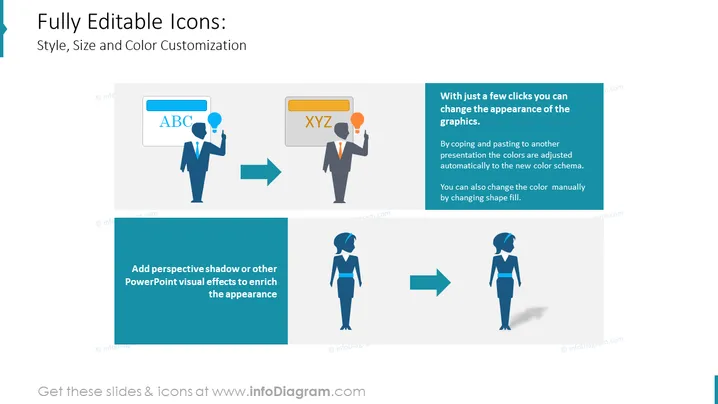
The PowerPoint slide titled "Fully Editable Icons" focuses on the versatility of slide graphics, emphasizing their style, size, and color customization. The slide describes how icons can easily be adapted in presentations by adjusting colors automatically to match a new color scheme or manually changing the shape fill. Additionally, the slide highlights the ability to enrich the appearance of graphics by adding visual effects like perspective shadow.
Graphical Look
- The slide has a clean and professional layout with a light-colored background and two main sections divided by color and content: a light gray on the left and a darker teal on the right.
- There are two sets of icons on either side, before and after transformation, each depicting a male silhouette with a speech bubble and a female silhouette.
- The male icon on the left displays a blue speech bubble with the letters "ABC", while the right side shows the same icon with colors changed to orange and an altered speech bubble text "XYZ".
- The female icon on the left is shown in blue, and to the right, the icon has changed to a teal gradient with an added shadow effect.
- Two blue arrows point from the original to the modified icons, indicating the change process.
- Two blocks of explanatory text align on the right side of the slide, with the upper block in a darker shade explaining the icon color change and the lower block in a matching teal discussing the addition of visual effects.
- Each icon and text segment is within its bordered area, creating a clean partition of content.
- A callout box with a dark teal background at the bottom left emphasizes the enhancement of icons with PowerPoint visual effects.
The overall look of the slide is modern and straightforward, designed to convey the adaptability of graphics in presentations effectively. The use of before-and-after imagery serves to demonstrate the customization process clearly.
Use Cases
- To demonstrate graphic customization capabilities in a software tutorial or product demonstration.
- While training employees on how to align presentation designs with corporate branding guidelines.
- In a marketing presentation, to showcase the adaptability of campaign materials across different platforms or color schemes.
- During a client pitch, to illustrate the ease of integrating their brand identity into proposed deliverable formats or templates.
How to Edit
How to edit text & colors

How to expand / shorten diagram

How to Replace Icons in infoDiagram PPT


