

Your graphics add a nice touch to my presentations and I recently used them for one of my all-hands meetings. Your toolbox adds professionalism to my slides. Instead of using standard clipart.
Claude Jones, Director of Engineer, @Walmartlabs, USA

Your graphics add a nice touch to my presentations and I recently used them for one of my all-hands meetings. Your toolbox adds professionalism to my slides. Instead of using standard clipart.
Claude Jones, Director of Engineer, @Walmartlabs, USA
I needed a fresh look at some of my slides. I've tried to find a way to create a paintbrush effect, to underline, accentuate, add some color and the handwritten markers were just the things. Very easy to use, easy to size, change the color. It was an affordable, perfect solution and I'm happy to recommend it.
Anonymous, US
The crisp, clean look of the graphics, and the fact that it allowed me to easily edit and change the colors to match the template was my main reason for purchasing them.
Brandie Jenkins, E-learning Developer, USA
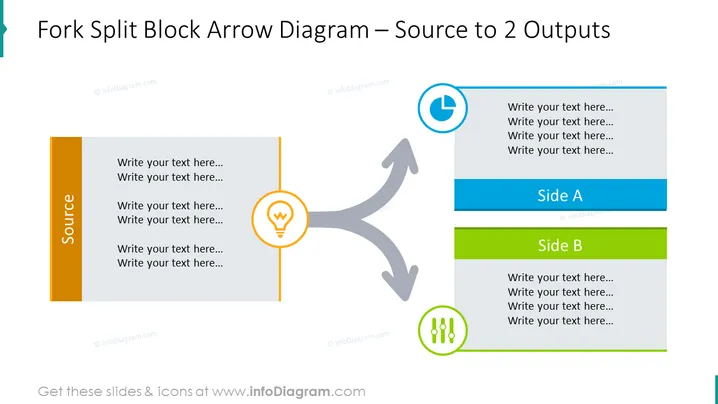
The PowerPoint slide illustrates a fork split block arrow diagram depicting a single source leading to two different outputs. The left side features a tall, vertical block with text placeholders labeled "Source", signifying the origin or starting point of a process. At the center of the slide, a thick arrow splits from this source into two directions, each leading to another block. These blocks are labeled "Side A" and "Side B" respectively, with multiple text placeholders for adding detailed information. Icons adjacent to the split arrow, a light bulb and group of people, suggest the two outputs involve ideas and collaboration.
The slide is characterized by a clean, professional design with a limited color palette that efficiently highlights different sections and their purposes. The use of icons provides visual cues to the content related to each output.



