
Reviews
Vos graphiques ajoutent une belle touche à mes présentations et je les ai récemment utilisés pour l'une de mes réunions générales. Votre boîte à outils ajoute du professionnalisme à mes diapositives. Au lieu d'utiliser des cliparts standards.
J'avais besoin d'un nouveau regard sur certaines de mes diapositives. J'ai essayé de trouver un moyen de créer un effet de pinceau, de souligner, d'accentuer, d'ajouter de la couleur et les marqueurs manuscrits étaient exactement ce qu'il fallait. Très facile à utiliser, facile à ajuster la taille, à changer la couleur. C'était une solution abordable et parfaite et je suis heureux de la recommander.
L'aspect net et épuré des graphiques, et le fait qu'il m'ait permis d'éditer et de changer facilement les couleurs pour les adapter au modèle, ont été les principales raisons de mon achat.
Description
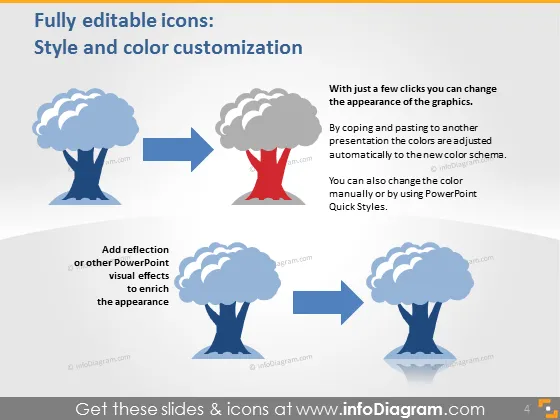
Fully editable icons: Style and color customization
Slide Content
The PowerPoint slide presents how icons can be customized in terms of style and color. It shows a step-by-step process where a tree icon with a blue canopy and gray trunk transitions to a red canopy through color adjustment. The slide emphasizes that these changes can be made easily with just a few clicks, either manually or by using PowerPoint Quick Styles. Furthermore, it suggests adding reflection or other visual effects to enrich the icon's appearance.
Graphical Look
- Slide title is at the top in bold white letters on a dark background.
- Two primary graphics: tree icons on the left and right side of the slide.
- Left graphic: a tree icon with a blue canopy and a gray trunk.
- Right graphic: the same tree icon modified with a red canopy.
- Arrows between the graphics indicate a transformation or process.
- A blue rectangular callout box with white text beneath the left graphic, detailing the addition of reflections or visual effects.
- Descriptive text on the right, explaining the editing process of icons.
- Three smaller icons are situated near the bottom, each displaying a gradient of color transition.
- The slide background is shaded dark blue towards the top and gradually transitions to light blue at the bottom.
- An illustrative blue arrow connects the two primary tree icons, emphasizing the editing action.
The slide uses a simple yet effective design, focusing on specific icon customization. It utilizes a professional color scheme, contrast, and visual flow to guide the viewer through the content.
Use Cases
- Illustrating the flexibility and customization options available in presentation software.
- Teaching a tutorial session on how to edit and enhance visual elements in PowerPoint.
- Demonstrating design capabilities during a sales pitch for graphic design services.
- Including in a training module for company employees on how to maintain brand consistency through customizable graphics.
How to Edit
How to edit text & colors

How to expand / shorten diagram

How to Replace Icons in infoDiagram PPT


