
Reviews
Your graphics add a nice touch to my presentations and I recently used them for one of my all-hands meetings. Your toolbox adds professionalism to my slides. Instead of using standard clipart.
I needed a fresh look at some of my slides. I've tried to find a way to create a paintbrush effect, to underline, accentuate, add some color and the handwritten markers were just the things. Very easy to use, easy to size, change the color. It was an affordable, perfect solution and I'm happy to recommend it.
The crisp, clean look of the graphics, and the fact that it allowed me to easily edit and change the colors to match the template was my main reason for purchasing them.
Description
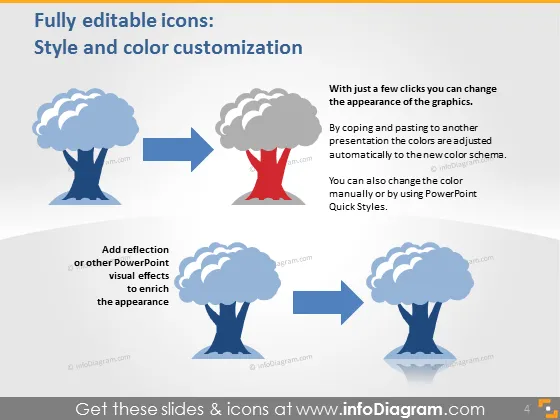
Fully editable icons: Style and color customization
Slide Content
The PowerPoint slide presents how icons can be customized in terms of style and color. It shows a step-by-step process where a tree icon with a blue canopy and gray trunk transitions to a red canopy through color adjustment. The slide emphasizes that these changes can be made easily with just a few clicks, either manually or by using PowerPoint Quick Styles. Furthermore, it suggests adding reflection or other visual effects to enrich the icon's appearance.
Graphical Look
- Slide title is at the top in bold white letters on a dark background.
- Two primary graphics: tree icons on the left and right side of the slide.
- Left graphic: a tree icon with a blue canopy and a gray trunk.
- Right graphic: the same tree icon modified with a red canopy.
- Arrows between the graphics indicate a transformation or process.
- A blue rectangular callout box with white text beneath the left graphic, detailing the addition of reflections or visual effects.
- Descriptive text on the right, explaining the editing process of icons.
- Three smaller icons are situated near the bottom, each displaying a gradient of color transition.
- The slide background is shaded dark blue towards the top and gradually transitions to light blue at the bottom.
- An illustrative blue arrow connects the two primary tree icons, emphasizing the editing action.
The slide uses a simple yet effective design, focusing on specific icon customization. It utilizes a professional color scheme, contrast, and visual flow to guide the viewer through the content.
Use Cases
- Illustrating the flexibility and customization options available in presentation software.
- Teaching a tutorial session on how to edit and enhance visual elements in PowerPoint.
- Demonstrating design capabilities during a sales pitch for graphic design services.
- Including in a training module for company employees on how to maintain brand consistency through customizable graphics.
How to Edit
How to edit text & colors

How to expand / shorten diagram

How to Replace Icons in infoDiagram PPT


