
Reviews
Ihre Grafiken verleihen meinen Präsentationen eine nette Note, und ich habe sie kürzlich für eines meiner All-Hands-Meetings verwendet. Ihre Toolbox verleiht meinen Folien Professionalität, anstatt Standard-Clipart zu verwenden.
Ich brauchte einen neuen Blick auf einige meiner Folien. Ich habe versucht, einen Weg zu finden, einen Pinselschlag-Effekt zu erzielen, um zu unterstreichen, hervorzuheben, Farbe hinzuzufügen, und die handgeschriebenen Markierungen waren genau das Richtige. Sehr einfach zu bedienen, leicht in der Größe zu ändern, die Farbe zu ändern. Es war eine erschwingliche, perfekte Lösung und ich empfehle sie gerne weiter.
Die klare, saubere Optik der Grafiken und die Tatsache, dass ich die Farben leicht bearbeiten und an die Vorlage anpassen konnte, war mein Hauptgrund für den Kauf.
Description
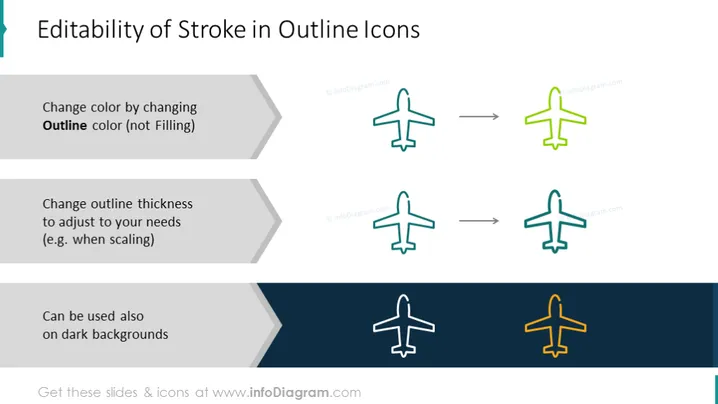
Editability of Stroke in Outline Icons
Slide Content
This PowerPoint slide focuses on demonstrating the "Editability of Stroke in Outline Icons." It illustrates three key aspects: first, changing the color of icons by adjusting the outline color rather than the filling; second, altering the outline thickness to suit various needs, such as scaling; and third, the versatility of using these outline icons on dark backgrounds, showcasing their adaptability to different design scenarios.
Graphical Look
- The slide features a large title at the top in dark text against a light background.
- Three sets of horizontal elements are aligned in a column on the left, each with a light gray chevron leading to a brief description emphasizing key points in dark text.
- "Change color by changing Outline color (not Filling)"
- "Change outline thickness to adjust to your needs (e.g., when scaling)"
- "Can be used also on dark backgrounds"
- Corresponding to each text explanation, there is a pair of airplane icons on the right, showing a before (gray outline) and after (colored outline) transformation, connected by arrows to illustrate the change.
- The slide background is white at the top, gradually blending into a dark navy blue towards the bottom.
- Each descriptive text is accompanied by a graphical representation (icons), enhancing visual understanding.
The slide has a clean, professional look with a gradient background that provides a visually appealing transition from light to dark. The use of contrasting colors (gray, green, teal, and orange) for the icons effectively illustrates the customization possibilities of the outline strokes.
Use Cases
- A graphic design tutorial showcasing techniques for customizing vector icons within a presentation.
- An instructional session for non-designers to explain how simple changes can adjust iconography to fit brand colors or presentation themes.
- A sales or marketing presentation to demonstrate product features that include customizable design elements.
- A workshop for UI/UX designers focusing on the adaptability of visual assets in different user interface themes, using the icons as examples.
How to Edit
How to edit text & colors

How to expand / shorten diagram

How to Replace Icons in infoDiagram PPT


