
Reviews
Your graphics add a nice touch to my presentations and I recently used them for one of my all-hands meetings. Your toolbox adds professionalism to my slides. Instead of using standard clipart.
I needed a fresh look at some of my slides. I've tried to find a way to create a paintbrush effect, to underline, accentuate, add some color and the handwritten markers were just the things. Very easy to use, easy to size, change the color. It was an affordable, perfect solution and I'm happy to recommend it.
The crisp, clean look of the graphics, and the fact that it allowed me to easily edit and change the colors to match the template was my main reason for purchasing them.
Description
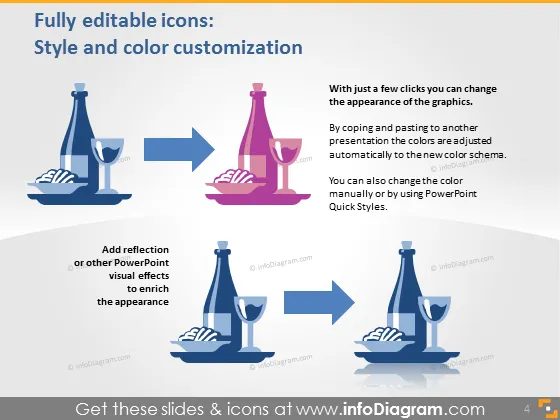
Fully editable icons: Style and color customization
Slide Content
The PowerPoint slide is dedicated to showcasing the customization options for icons regarding their style and color within presentations. The text highlights that graphic appearance can be changed with a few clicks, either by copying to another presentation for automatic color matching or by manual adjustments utilizing PowerPoint's Quick Styles. Additional PowerPoint visual effects, like reflections, can also enhance icon appearances, implying that there's a range of creative options for personalizing presentations.
Graphical Look
- The slide has a dark blue background with a white text area for the title.
- There are three sets of icons: an original binocular icon on the left, an adjusted colored icon in the middle, and a final version with added reflection on the right.
- Each icon set is connected by a light gray arrow, indicating the process of transformation from one style to another.
- The middle and right sections of the slide contain explanatory text in white, aligned to the right.
- The binocular icons are stylized and simplified, with the middle and right sets in varying shades of pink and blue, respectively.
- Shadow effects are applied to the icons for depth, with the rightmost icons showing additional reflection effects below them.
The slide features a clean, professional design with sharp contrasts due to the dark background and light-colored text and icons. The transformation process from a standard icon to a customized version is visually communicated through the use of arrows and the progression of icon styles across the slide.
Use Cases
- Introducing the customization capabilities of a software application during a training session.
- Demonstrating the process of brand alignment in corporate presentations by customizing icons to match company colors.
- Showcasing before and after examples of design enhancements in a marketing strategy presentation.
- Illustrating the steps in a creative process during a workshop on effective presentation design.
How to Edit
How to edit text & colors

How to expand / shorten diagram

How to Replace Icons in infoDiagram PPT


