
Reviews
Your graphics add a nice touch to my presentations and I recently used them for one of my all-hands meetings. Your toolbox adds professionalism to my slides. Instead of using standard clipart.
I needed a fresh look at some of my slides. I've tried to find a way to create a paintbrush effect, to underline, accentuate, add some color and the handwritten markers were just the things. Very easy to use, easy to size, change the color. It was an affordable, perfect solution and I'm happy to recommend it.
The crisp, clean look of the graphics, and the fact that it allowed me to easily edit and change the colors to match the template was my main reason for purchasing them.
Description
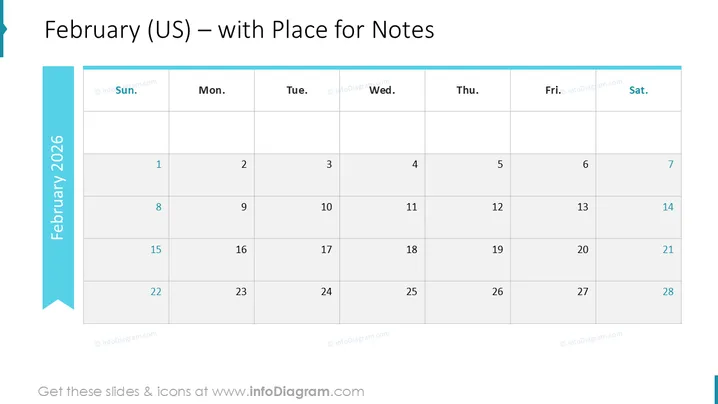
February (US) – with Place for Notes
Slide Content
The PowerPoint slide is a calendar template for February 2026 . It is a US-style calendar, beginning with Sunday on the left and ending with Saturday on the right. Each date is clearly marked in its respective box, starting with the 1st of February on a Saturday and ending on the 28th of February, which falls on a Friday. The calendar provides ample space within each day's box for notes, allowing users to jot down events, appointments, or reminders.
Graphical Look
- The slide background is white, giving it a clean and uncluttered look.
- A teal-colored vertical banner runs along the left side with the year "2025" written vertically.
- Each day of the week is labeled at the top row with dark text against a light grey background for contrast.
- The days are arranged in a grid format, comprising 7 columns corresponding to each day of the week and 5 rows to accommodate the weeks of the month.
- Date numbers are placed in the top left of each grid cell.
- Faint grey lines delineate the different days, ensuring easy readability without distracting from the content.
- The title uses bold, large font, easily readable, and is aligned to the left of the slide, adjacent to the vertical banner.
The slide has a professional and minimalist design aesthetic. It is straightforward in its purpose, with a focus on functionality and ease of use.
Use Cases
- For project planning presentations to mark key milestones and deadlines.
- In personal organization workshops to teach calendar management and scheduling.
- As part of team meetings to discuss availability and allocate tasks across various days.
- To visually communicate holiday schedules, company-wide events, or maintenance dates in corporate settings.
How to Edit
How to edit text & colors

How to expand / shorten diagram

How to Replace Icons in infoDiagram PPT


