

Your graphics add a nice touch to my presentations and I recently used them for one of my all-hands meetings. Your toolbox adds professionalism to my slides. Instead of using standard clipart.
Claude Jones, Director of Engineer, @Walmartlabs, USA

Your graphics add a nice touch to my presentations and I recently used them for one of my all-hands meetings. Your toolbox adds professionalism to my slides. Instead of using standard clipart.
Claude Jones, Director of Engineer, @Walmartlabs, USA
I needed a fresh look at some of my slides. I've tried to find a way to create a paintbrush effect, to underline, accentuate, add some color and the handwritten markers were just the things. Very easy to use, easy to size, change the color. It was an affordable, perfect solution and I'm happy to recommend it.
Anonymous, US
The crisp, clean look of the graphics, and the fact that it allowed me to easily edit and change the colors to match the template was my main reason for purchasing them.
Brandie Jenkins, E-learning Developer, USA
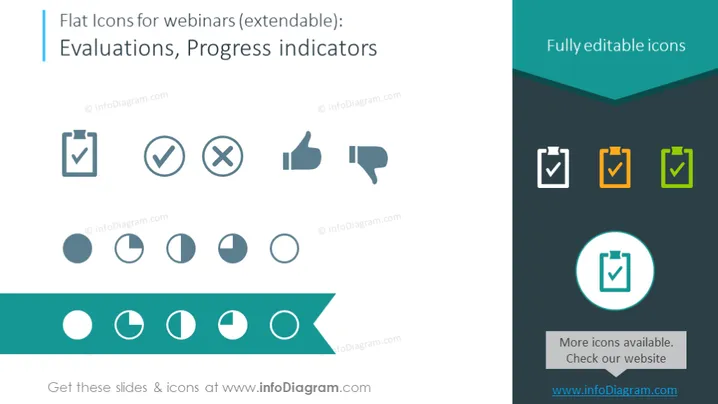
The slide presents a collection of flat icons designed for use in webinars, specifically for indicating evaluations and progress. The icons include variations of checkmarks, representing tasks or items that have been approved or completed, crosses for denials or errors, a thumbs up for approval, a thumbs down for disapproval, and a series of pie-chart-like icons indicating different levels of progress from empty to full. Each icon is meant to provide a quick visual communication of status, feedback, or progression during a webinar presentation.
The slide has a modern and minimalistic appearance with a focus on flat design for the icons. The use of contrasting colors such as teal, grey, and hints of orange and green help the icons stand out and grab attention.



