

Your graphics add a nice touch to my presentations and I recently used them for one of my all-hands meetings. Your toolbox adds professionalism to my slides. Instead of using standard clipart.
Claude Jones, Director of Engineer, @Walmartlabs, USA

Your graphics add a nice touch to my presentations and I recently used them for one of my all-hands meetings. Your toolbox adds professionalism to my slides. Instead of using standard clipart.
Claude Jones, Director of Engineer, @Walmartlabs, USA
I needed a fresh look at some of my slides. I've tried to find a way to create a paintbrush effect, to underline, accentuate, add some color and the handwritten markers were just the things. Very easy to use, easy to size, change the color. It was an affordable, perfect solution and I'm happy to recommend it.
Anonymous, US
The crisp, clean look of the graphics, and the fact that it allowed me to easily edit and change the colors to match the template was my main reason for purchasing them.
Brandie Jenkins, E-learning Developer, USA
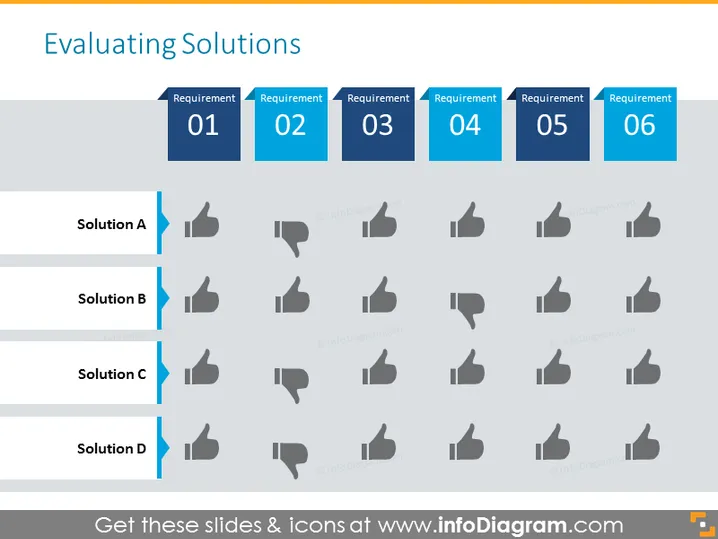
The slide is titled "Evaluating Solutions" and displays a matrix for comparing different solutions (labeled A to D) against six requirements (numbered 1 to 6). Each solution's compatibility or fulfillment of a requirement is represented by thumbs-up or thumbs-down icons, indicating approval or disapproval respectively. This visual approach allows for a quick assessment of how well each solution meets the specified criteria. Solutions A and B appear to meet most requirements with positive responses, while Solutions C and D have a mix of positive and negative evaluations.
The slide has a clean, professional design with a gray and blue color scheme. The use of iconic thumbs-up and thumbs-down symbols provides an immediate visual indication of positive or negative assessments.



