

Your graphics add a nice touch to my presentations and I recently used them for one of my all-hands meetings. Your toolbox adds professionalism to my slides. Instead of using standard clipart.
Claude Jones, Director of Engineer, @Walmartlabs, USA

Your graphics add a nice touch to my presentations and I recently used them for one of my all-hands meetings. Your toolbox adds professionalism to my slides. Instead of using standard clipart.
Claude Jones, Director of Engineer, @Walmartlabs, USA
I needed a fresh look at some of my slides. I've tried to find a way to create a paintbrush effect, to underline, accentuate, add some color and the handwritten markers were just the things. Very easy to use, easy to size, change the color. It was an affordable, perfect solution and I'm happy to recommend it.
Anonymous, US
The crisp, clean look of the graphics, and the fact that it allowed me to easily edit and change the colors to match the template was my main reason for purchasing them.
Brandie Jenkins, E-learning Developer, USA
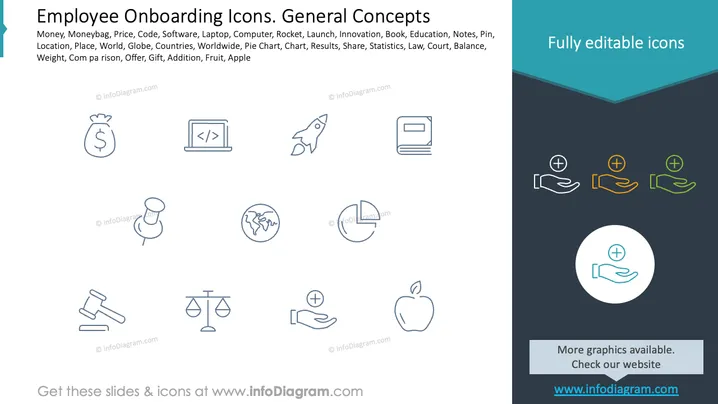
The PowerPoint slide titled "Employee Onboarding Icons. General Concepts" lists various thematic icon categories that could be relevant for presentations related to employee onboarding. The icons cover a broad spectrum of topics which are separated by commas, including Money, Code, and Book, each representing financial aspects, technology, and education respectively. Additional icons such as Location, Launch, and Apple are indicative of geographic positioning, business growth, and health or benefits, illustrating versatile concepts that can be communicated visually during onboarding.
The overall look of the slide is clean and modern, with a minimalist design focused on easy-to-interpret icons. The consistent style and color palette provide visual cohesion, making the content easily accessible to viewers.



