

Your graphics add a nice touch to my presentations and I recently used them for one of my all-hands meetings. Your toolbox adds professionalism to my slides. Instead of using standard clipart.
Claude Jones, Director of Engineer, @Walmartlabs, USA

Your graphics add a nice touch to my presentations and I recently used them for one of my all-hands meetings. Your toolbox adds professionalism to my slides. Instead of using standard clipart.
Claude Jones, Director of Engineer, @Walmartlabs, USA
I needed a fresh look at some of my slides. I've tried to find a way to create a paintbrush effect, to underline, accentuate, add some color and the handwritten markers were just the things. Very easy to use, easy to size, change the color. It was an affordable, perfect solution and I'm happy to recommend it.
Anonymous, US
The crisp, clean look of the graphics, and the fact that it allowed me to easily edit and change the colors to match the template was my main reason for purchasing them.
Brandie Jenkins, E-learning Developer, USA
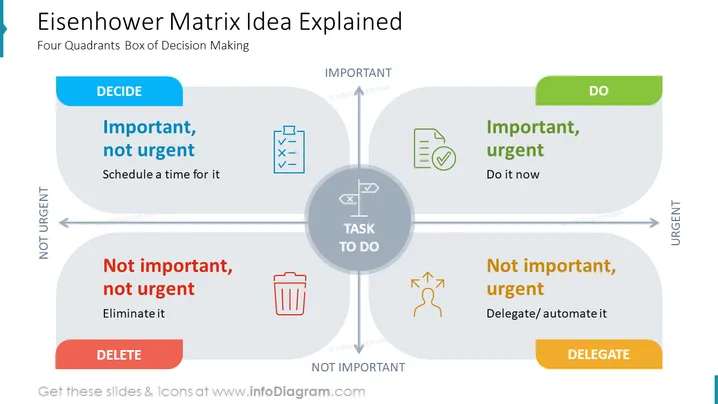
The PowerPoint slide presents the Eisenhower Matrix, which is a tool for prioritizing tasks based on urgency and importance, resulting in more efficient decision-making. It is divided into four quadrants: The "DO" quadrant represents tasks that are important and urgent, suggesting immediate action. The "DECIDE" quadrant includes important, but not urgent tasks, advising to schedule time for them. The "DELEGATE" quadrant is for tasks that are urgent but not important, recommending delegation or automation. Lastly, the "DELETE" quadrant encompasses tasks that are neither urgent nor important, inviting users to eliminate them.
The overall design is modern and clean, with a balanced use of whitespace and color to make each quadrant distinct and easy to understand. The use of icons adds a visual representation to the text, making the content more approachable.



