
Reviews
Sus gráficos añaden un toque agradable a mis presentaciones y recientemente los usé para una de mis reuniones generales. Su conjunto de herramientas añade profesionalismo a mis diapositivas. En lugar de usar imágenes prediseñadas estándar.
Necesitaba un aspecto fresco para algunas de mis diapositivas. Había intentado encontrar una forma de crear un efecto de pincel, de subrayar, acentuar, añadir algo de color y los marcadores escritos a mano fueron justo lo que necesitaba. Muy fácil de usar, fácil de ajustar el tamaño, cambiar el color. Fue una solución asequible y perfecta, y estoy feliz de recomendarla.
El aspecto nítido y limpio de los gráficos, y el hecho de que me permitiera editar y cambiar fácilmente los colores para que coincidieran con la plantilla fue mi principal razón para comprarlos.
Description
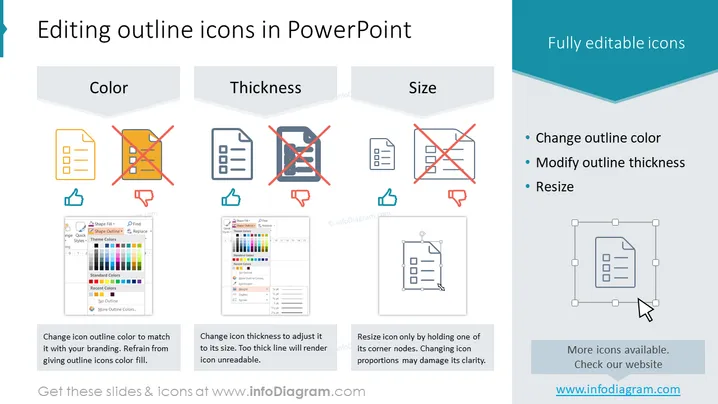
Editing outline icons in PowerPoint
Slide Content
The slide presents information about customizing outline icons in PowerPoint, emphasizing the he options to change outline color, thickness, and size to enhance presentations. "Color" references matching icon color to branding while cautioning against filling icons, "Thickness" suggests adjusting line weight for readability and aesthetic match, and "Size" advises resizing with corner handles to maintain proportionality. Each of these concepts contributes to coherent graphic design within a presentation, helping to maintain visual consistency and the effective conveyance of intended messages.
Graphical Look
- The slide has a horizontal orientation with a teal header and three main columns.
- Each column features an icon at the top, with two showing a checkmark and one with an X.
- Below the icons are textual descriptions that provide instructions or tips.
- Two of the columns have additional images demonstrating the PowerPoint interface.
- The icons are simple line drawings, representing a document, and are used to visually compare correct and incorrect editing practices.
- The overall color scheme is teal, gray, and white, with splashes of yellow and red for emphasis.
- The slide has a clear, modern aesthetic with ample whitespace, promoting readability.
The slide has a very clean and professional look, using contrasting colors smartly to highlight key points. The visual elements such as icons and interface screenshots are well-organized, directly supporting the text.
Use Cases
- Demonstrating best practices for editing graphics during a PowerPoint training session.
- Offering tips for maintaining brand consistency during a corporate branding workshop.
- Explaining the importance of visual consistency when presenting to design teams.
- Providing guidelines for non-designers to create professional presentations in an office setting.
How to Edit
How to edit text & colors

How to expand / shorten diagram

How to Replace Icons in infoDiagram PPT


