
Reviews
Sus gráficos añaden un toque agradable a mis presentaciones y recientemente los usé para una de mis reuniones generales. Su conjunto de herramientas añade profesionalismo a mis diapositivas. En lugar de usar imágenes prediseñadas estándar.
Necesitaba un aspecto fresco para algunas de mis diapositivas. Había intentado encontrar una forma de crear un efecto de pincel, de subrayar, acentuar, añadir algo de color y los marcadores escritos a mano fueron justo lo que necesitaba. Muy fácil de usar, fácil de ajustar el tamaño, cambiar el color. Fue una solución asequible y perfecta, y estoy feliz de recomendarla.
El aspecto nítido y limpio de los gráficos, y el hecho de que me permitiera editar y cambiar fácilmente los colores para que coincidieran con la plantilla fue mi principal razón para comprarlos.
Description
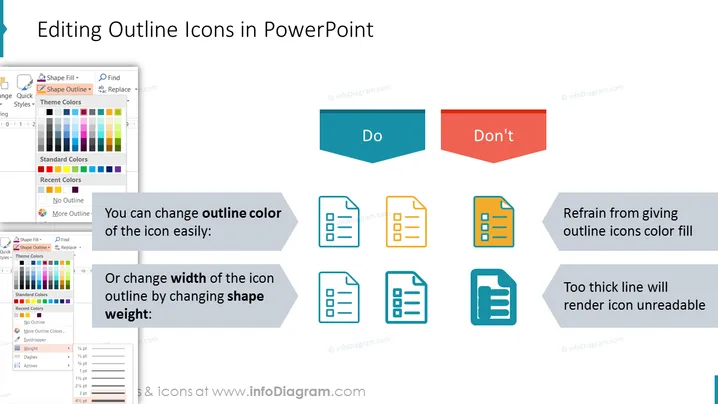
Editing Outline Icons in PowerPoint
Slide Content
The slide is titled "Editing Outline Icons in PowerPoint" and is likely a tutorial on icon customization within the presentation software. It illustrates the best practices with a "Do" and "Don't" approach. The "Do" side suggests that you can easily change the color of an icon's outline or adjust the icon's outline width by modifying the shape weight. These actions maintain icon clarity. In contrast, the "Don't" side advises against filling outline icons with color and against using excessively thick lines, as these can make icons less readable.
Graphical Look
- The slide uses a plain white background as the canvas.
- At the top, a large blue ribbon serves as the header for the title, employing a white, bold, sans-serif font.
- Two parallelogram shapes form the "Do" and "Don't" labels, with the "Do" label in blue and the "Don't" label in a contrasting red.
- Below each label, there are examples of icons illustrating the correct and incorrect methods.
- The examples showing correct practices are accompanied by grey arrows and text describing the action.
- The icons are simple and outlined, featuring a clipboard and list design.
- For incorrect practices, there is also descriptive text but with icons that are incorrectly colored or have overly thick outlines.
- Each instructional point has a small screenshot of the PowerPoint interface, showing the specific tool or menu option to use.
The overall look of the slide is clean and professional, with a clear distinction between recommended and discouraged practices. The use of blue for positive actions and red for negative ones provides an intuitive visual cue for viewers.
Use Cases
- For training presentations on effective PowerPoint design techniques.
- In workshops or tutorials focused on graphic design within PowerPoint.
- To guide employees in creating visually appealing and clear business presentations.
- As part of internal company documentation or online tutorials for brand standard presentation guidelines.
How to Edit
How to edit text & colors

How to expand / shorten diagram

How to Replace Icons in infoDiagram PPT


