
Reviews
Ihre Grafiken verleihen meinen Präsentationen eine nette Note, und ich habe sie kürzlich für eines meiner All-Hands-Meetings verwendet. Ihre Toolbox verleiht meinen Folien Professionalität, anstatt Standard-Clipart zu verwenden.
Ich brauchte einen neuen Blick auf einige meiner Folien. Ich habe versucht, einen Weg zu finden, einen Pinselschlag-Effekt zu erzielen, um zu unterstreichen, hervorzuheben, Farbe hinzuzufügen, und die handgeschriebenen Markierungen waren genau das Richtige. Sehr einfach zu bedienen, leicht in der Größe zu ändern, die Farbe zu ändern. Es war eine erschwingliche, perfekte Lösung und ich empfehle sie gerne weiter.
Die klare, saubere Optik der Grafiken und die Tatsache, dass ich die Farben leicht bearbeiten und an die Vorlage anpassen konnte, war mein Hauptgrund für den Kauf.
Description
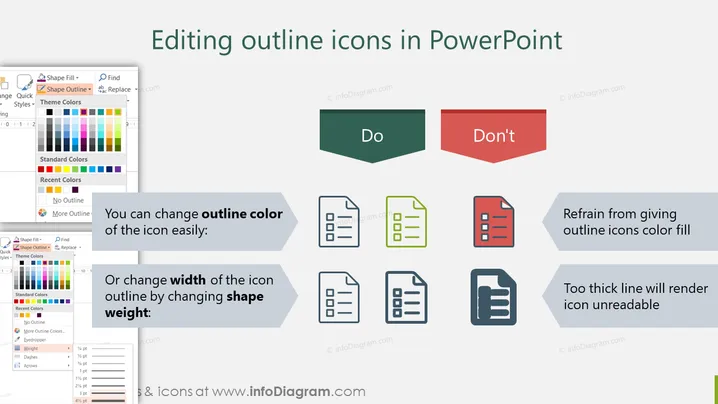
Editing outline icons in PowerPoint
Slide Content
The PowerPoint slide titled "Editing outline icons in PowerPoint" breaks down the dos and don'ts related to customizing outline icons. The "Do" side recommends changing the outline color for better visibility and adjusting the icon outline's width by altering the shape weight to match the presentation's design needs. On the contrary, the "Don't" side advises against filling the icons with color and warns that excessively thick lines can make the icons undecipherable.
Graphical Look
- The slide background is white.
- At the top, there's a sizable, dark gray title text for the slide.
- Two contrasting colored hexagonal shapes labeled "Do" and "Don't," in green and red respectively, are located beside each other in the upper mid-section.
- Below each heading hexagon, there are three additional gray hexagon shapes with icons and textboxes highlighting specific points.
- Each point is illustrated with a screenshot of a PowerPoint menu on the left and an example icon on the right.
- The icons are monochrome, with one featuring a green outline as an example of customization.
- The PowerPoint menu screenshots show various color and thickness options.
- The bullet points under "Do" include "You can change outline color of the icon easily:" and "Or change width of the icon outline by changing shape weight:"
- The bullet points under "Don't" include "Refrain from giving outline icons color fill" and "Too thick line will render icon unreadable"
The slide has a clear and structured layout, with visual aids such as screenshots and example icons providing a quick understanding of the customization steps. The use of contrasting colors highlights the best practices and common mistakes in editing icons within PowerPoint.
Use Cases
- To train employees on how to effectively use PowerPoint tools for enhancing presentations.
- During workshops or webinars focusing on advanced PowerPoint techniques for designers and presenters.
- In instructional materials for a course or tutorial on graphic design fundamentals using PowerPoint.
- As part of a style guide for a company or team to ensure consistent presentation practices.
How to Edit
How to edit text & colors

How to expand / shorten diagram

How to Replace Icons in infoDiagram PPT


