
Reviews
Sus gráficos añaden un toque agradable a mis presentaciones y recientemente los usé para una de mis reuniones generales. Su conjunto de herramientas añade profesionalismo a mis diapositivas. En lugar de usar imágenes prediseñadas estándar.
Necesitaba un aspecto fresco para algunas de mis diapositivas. Había intentado encontrar una forma de crear un efecto de pincel, de subrayar, acentuar, añadir algo de color y los marcadores escritos a mano fueron justo lo que necesitaba. Muy fácil de usar, fácil de ajustar el tamaño, cambiar el color. Fue una solución asequible y perfecta, y estoy feliz de recomendarla.
El aspecto nítido y limpio de los gráficos, y el hecho de que me permitiera editar y cambiar fácilmente los colores para que coincidieran con la plantilla fue mi principal razón para comprarlos.
Description
Editing Outline Icons in PowerPoint
Slide Content
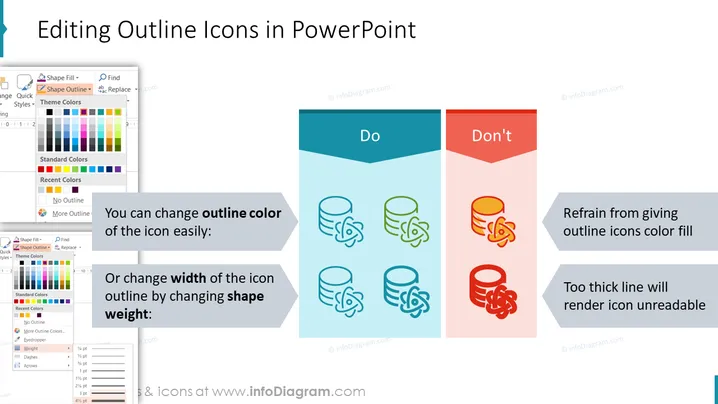
The slide titled "Editing Outline Icons in PowerPoint" compares the best practices for modifying the appearance of icons within PowerPoint presentations. On the left, under the "Do" section, it suggests that one can easily change the outline color of the icon, providing a visual example with icons colored in a blue shade. This section also advises altering the width of the icon outline by changing the shape weight, accompanied by an image showing varied outline thicknesses. Conversely, on the right, under the "Don't" section, it cautions against giving outline icons a color fill and using excessively thick lines, which can make the icon unreadable, as demonstrated by overly bright and thick outline examples.
Graphical Look
- A large title text in bold font spans the top of the slide.
- Two contrasting side-by-side sections labeled "Do" and "Don't," divided by a central vertical line.
- The "Do" section has a soft blue background, while the "Don't" section features a red background for negative emphasis.
- Each section contains example icons: on the left, icons have varying shades of blue outlines, and on the right, icons have a solid red-orange fill with thick borders.
- Two descriptive text boxes with white backgrounds outline the recommended actions (left) and practices to avoid (right) for each set of icons.
- Drop shadow effects are applied to the example icons and text boxes, giving a 3D appearance to the elements.
The slide has a clean, modern design with clear visual distinctions between the recommended and discouraged practices for icon editing. The contrasting colors and simple iconography effectively communicate the do's and don'ts.
Use Cases
- Teaching a workshop on effective PowerPoint presentation design.
- Guiding employees during corporate training on creating visual content.
- Providing tips for visual consistency during a webinar on professional presentation techniques.
- Creating a reference material for a design team to maintain best practices in their presentations. I'm sorry, but it appears that there is no image attached to your question. If you would like to receive information or assistance with a PowerPoint slide or any other image, please attach the image, and I'll be happy to help you with it.
How to Edit
How to edit text & colors

How to expand / shorten diagram

How to Replace Icons in infoDiagram PPT


