

Your graphics add a nice touch to my presentations and I recently used them for one of my all-hands meetings. Your toolbox adds professionalism to my slides. Instead of using standard clipart.
Claude Jones, Director of Engineer, @Walmartlabs, USA

Your graphics add a nice touch to my presentations and I recently used them for one of my all-hands meetings. Your toolbox adds professionalism to my slides. Instead of using standard clipart.
Claude Jones, Director of Engineer, @Walmartlabs, USA
I needed a fresh look at some of my slides. I've tried to find a way to create a paintbrush effect, to underline, accentuate, add some color and the handwritten markers were just the things. Very easy to use, easy to size, change the color. It was an affordable, perfect solution and I'm happy to recommend it.
Anonymous, US
The crisp, clean look of the graphics, and the fact that it allowed me to easily edit and change the colors to match the template was my main reason for purchasing them.
Brandie Jenkins, E-learning Developer, USA
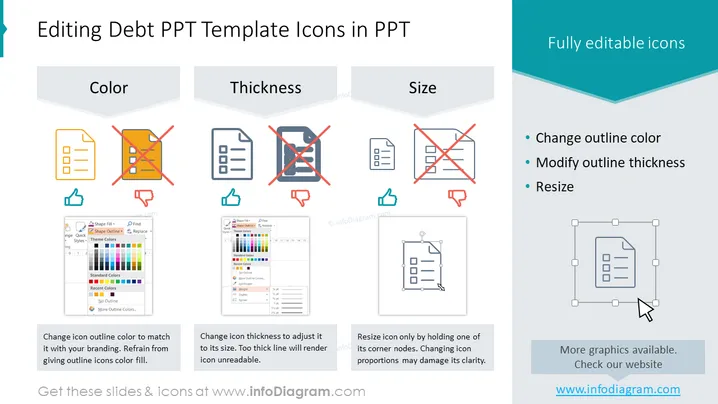
The slide is about customizing icons in PowerPoint presentations, specifically focusing on three aspects: color, thickness, and size. Under "Color," it instructs to change the icon outline color to match branding but advises against giving outline icons a color fill. For "Thickness," it warns that modifying icon thickness should be done carefully to keep it readable, as too thick lines can make icons unreadable. Lastly, under "Size," it recommends resizing icons by holding one of its corner nodes to maintain the icon's proportions, noting that incorrect scaling could harm clarity.
The slide has a clean and modern feel, with easy-to-understand visual representations of do's and don'ts using color codes and simple icons. It employs a balanced combination of textual explanations and visual cues to convey the message effectively.



