
Reviews
Your graphics add a nice touch to my presentations and I recently used them for one of my all-hands meetings. Your toolbox adds professionalism to my slides. Instead of using standard clipart.
I needed a fresh look at some of my slides. I've tried to find a way to create a paintbrush effect, to underline, accentuate, add some color and the handwritten markers were just the things. Very easy to use, easy to size, change the color. It was an affordable, perfect solution and I'm happy to recommend it.
The crisp, clean look of the graphics, and the fact that it allowed me to easily edit and change the colors to match the template was my main reason for purchasing them.
Description
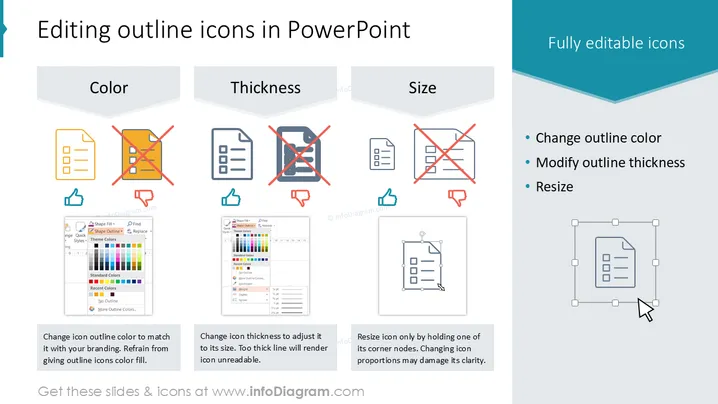
Editing outline icons in PowerPoint
Slide Content
The slide presents guidance on editing outline icons in PowerPoint, particularly focusing on three aspects: color, thickness, and size. "Color" emphasizes the adaptability of icon outline colors to align with branding guidelines and advises against color filling. "Thickness" discusses tweaking the line weight to maintain readability, warning that excessively thick lines can impair clarity. "Size" advises that icons should be resized from the corners to preserve proportions, as distorting these can degrade the icon's sharpness.
Graphical Look
- The slide features a dark teal header with the title in white.
- Three main sections, each with a light grey banner containing a black title: 'Color', 'Thickness', 'Size'.
- Each section has a pair of icons: the left one is a yellow document icon, and the right one is a document icon with a red 'X' over it.
- Beneath the icons' pairs are blue thumbs-up icons indicating a correct method and red thumbs-down icons indicating an incorrect method.
- For each section, there's a screenshot of a PowerPoint menu illustrating the correct method to adjust the corresponding feature.
- On the right side, a blue vertical banner lists benefits in bullet points with corresponding text: 'Change outline color', 'Modify outline thickness', and 'Resize'.
- A larger icon with resize handles and a cursor demonstrates the resizing process.
- The slide background is white.
- At the bottom right, a blue ribbon displays text encouraging the viewer to check out more icons on a website.
The slide's visual composition is clean and structured, using a combination of icons, screenshots, and instructional banners to deliver a step-by-step guide. Icons are used both to demonstrate the topic at hand and as visual cues for the dos and don'ts of the process.
Use Cases
- To train staff on how to effectively customize PowerPoint icons for presentations while adhering to brand guidelines.
- In a workshop on improving presentation design skills, focusing on best practices for visual consistency.
- As part of a toolkit in a company's in-house presentation template to ensure all employees follow the same design standards.
- During a seminar or webinar about mastering PowerPoint for business professionals, illustrating the importance of attention to detail in presentation visuals.
How to Edit
How to edit text & colors

How to expand / shorten diagram

How to Replace Icons in infoDiagram PPT


