
Reviews
Ihre Grafiken verleihen meinen Präsentationen eine nette Note, und ich habe sie kürzlich für eines meiner All-Hands-Meetings verwendet. Ihre Toolbox verleiht meinen Folien Professionalität, anstatt Standard-Clipart zu verwenden.
Ich brauchte einen neuen Blick auf einige meiner Folien. Ich habe versucht, einen Weg zu finden, einen Pinselschlag-Effekt zu erzielen, um zu unterstreichen, hervorzuheben, Farbe hinzuzufügen, und die handgeschriebenen Markierungen waren genau das Richtige. Sehr einfach zu bedienen, leicht in der Größe zu ändern, die Farbe zu ändern. Es war eine erschwingliche, perfekte Lösung und ich empfehle sie gerne weiter.
Die klare, saubere Optik der Grafiken und die Tatsache, dass ich die Farben leicht bearbeiten und an die Vorlage anpassen konnte, war mein Hauptgrund für den Kauf.
Description
Editing Outline Icons in PowerPoint
Slide Content
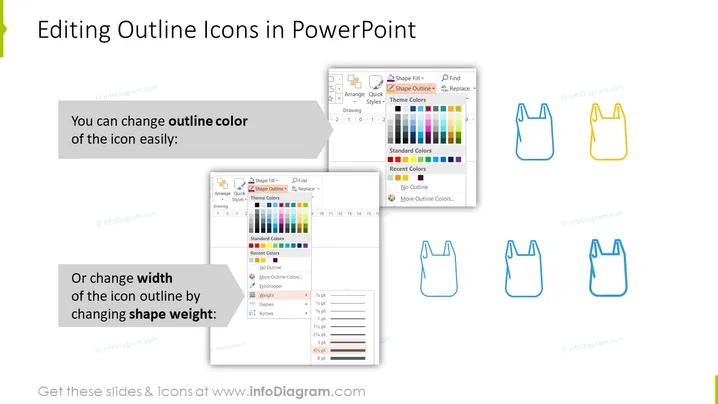
The slide is focused on demonstrating how to modify outline icons in PowerPoint. It presents two main modifications: changing the outline color and adjusting the outline width. Changing the outline color allows for customization to align with the color scheme of a presentation. Adjusting the outline width, or shape weight, can give the icons a varied emphasis or subtlety—which could be used to direct the audience's attention or conform to design aesthetics.
Graphical Look
- The slide has a light background with a green bookmark ribbon in the top-left corner.
- In the center top part of the slide, there is bold black text stating the main topic.
- Below the title, two separate text boxes describe actions: changing outline color and changing width of icon outline.
- Each descriptive box is accompanied by graphical instructions, depicted through partial screenshots of PowerPoint menus.
- On the right, there are two sets of three icons: shopping bags. The first set illustrates color changes, and the second set illustrates changes in outline width.
- The colors of the icons change from a default blue to orange and other shades.
- The weight of the icon outlines varies among the second set of icons from thin to thicker strokes.
The overall look is educational and visually demonstrative. The slide is well-organized with clear visual examples accompanied by concise textual explanations.
Use Cases
- Demonstrating PowerPoint skills in training sessions for professionals who need to create or modify presentations.
- Offering guidance during a workshop focused on graphic design in presentation software.
- Enhancing a company's brand presentation by standardizing icon design and color to match corporate identity.
- Improving the visual impact of a presentation by teaching how to effectively customize iconography for clarity and engagement.
How to Edit
How to edit text & colors

How to expand / shorten diagram

How to Replace Icons in infoDiagram PPT


