
Reviews
Sus gráficos añaden un toque agradable a mis presentaciones y recientemente los usé para una de mis reuniones generales. Su conjunto de herramientas añade profesionalismo a mis diapositivas. En lugar de usar imágenes prediseñadas estándar.
Necesitaba un aspecto fresco para algunas de mis diapositivas. Había intentado encontrar una forma de crear un efecto de pincel, de subrayar, acentuar, añadir algo de color y los marcadores escritos a mano fueron justo lo que necesitaba. Muy fácil de usar, fácil de ajustar el tamaño, cambiar el color. Fue una solución asequible y perfecta, y estoy feliz de recomendarla.
El aspecto nítido y limpio de los gráficos, y el hecho de que me permitiera editar y cambiar fácilmente los colores para que coincidieran con la plantilla fue mi principal razón para comprarlos.
Description
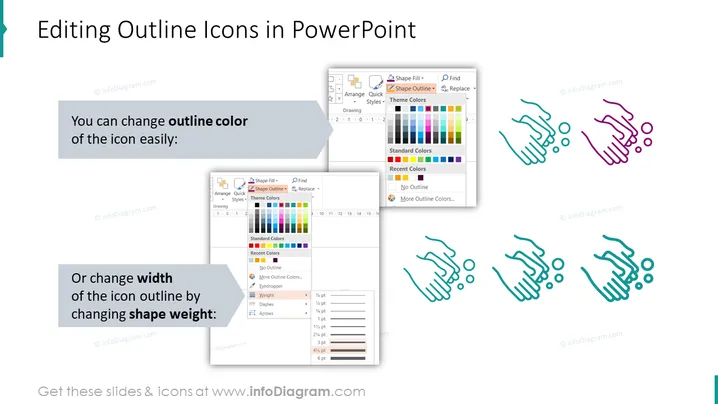
Editing Outline Icons in PowerPoint
Slide Content
The slide is about customizing outline icons in PowerPoint. It instructs on two ways to modify icons: changing the outline color and adjusting the width of the icon outline. Changing outline color refers to altering the visual hue that surrounds the perimeter of the icon, allowing for visual differentiation. Adjusting the icon outline width pertains to modifying the thickness of the line that forms the icon, which can help icons stand out or blend subtly into designs.
Graphical Look
- The slide background is white with a large title at the top written in dark text.
- Two text boxes introduce the main points, each with bold headers in blue, describing the icon editing functions.
- To the left of each text box, screenshots of PowerPoint tool menus illustrate the described changes.
- On the right, a series of hands-shaking icons are displayed in rows, showcasing the effects of outline color changes and width adjustments.
- The icons alter in color gradient from purple to teal and in outline thickness from thin to bold.
- Each set of icons is accompanied by a blue arrow emphasizing the transformation.
The slide has a clean, professional look with clear visual examples to illustrate the points made in the text. It uses a combination of text, screenshots, and icons to convey the how-to process effectively.
Use Cases
- During a training session for new employees on how to use PowerPoint for presentations.
- In a workshop or webinar about graphic design in PowerPoint.
- Within an instructional guide on creating visually engaging presentations.
- As part of a tips and tricks session on optimizing PowerPoint usage for marketing materials.
How to Edit
How to edit text & colors

How to expand / shorten diagram

How to Replace Icons in infoDiagram PPT


