
Reviews
Sus gráficos añaden un toque agradable a mis presentaciones y recientemente los usé para una de mis reuniones generales. Su conjunto de herramientas añade profesionalismo a mis diapositivas. En lugar de usar imágenes prediseñadas estándar.
Necesitaba un aspecto fresco para algunas de mis diapositivas. Había intentado encontrar una forma de crear un efecto de pincel, de subrayar, acentuar, añadir algo de color y los marcadores escritos a mano fueron justo lo que necesitaba. Muy fácil de usar, fácil de ajustar el tamaño, cambiar el color. Fue una solución asequible y perfecta, y estoy feliz de recomendarla.
El aspecto nítido y limpio de los gráficos, y el hecho de que me permitiera editar y cambiar fácilmente los colores para que coincidieran con la plantilla fue mi principal razón para comprarlos.
Description
Editing Flat Icons & Shapes in PowerPoint
Slide Content
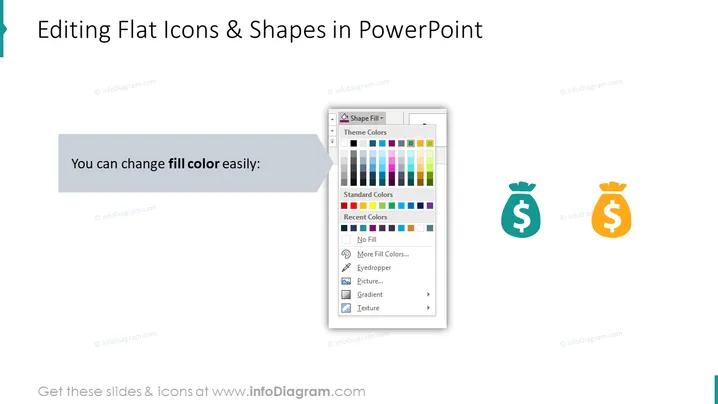
The slide is instructional in nature, focusing on the customization aspect of presentation design, specifically how to edit flat icons and shapes within PowerPoint. It provides a key tip: "You can change fill color easily". This refers to the ability to alter the interior color of graphical elements in a slide, allowing for personalization and adherence to a specific color scheme or visual branding.
Graphical Look
- The background color of the slide is white, providing a clean and minimalistic feel.
- The title is at the top center in bold, large, dark text, making it immediately noticeable.
- Below the title, there's a grey horizontal rectangle with an informational message in white text.
- A large screenshot of a PowerPoint color selection tool is on the left, visually complementing the instructional message.
- Two icons representing money bags—one teal and one orange—are on the right side, showing an example of color customization.
- There's a decorative grey arrow shape pointing from the text box to the image, indicating a connection between the instruction and the illustration.
- The slide has minimal text, focusing more on visual elements, with the colors teal, grey, and two shades of orange being predominant.
The overall look of the slide is simple and modern, with visual elements that directly relate to the slide's instructional content. The contrast between the icons and the background as well as the visual cue of the arrow makes the slide easy to follow.
Use Cases
- In workshops or tutorials teaching PowerPoint skills, demonstrating how to enhance presentations visually.
- As part of a style guide for team members to ensure consistent use of company colors and branding in presentations.
- During onboarding sessions for new employees, providing a quick overview of how to work with company templates.
- In internal communications to share updates about new features or best practices in presentation software.
How to Edit
How to edit text & colors

How to expand / shorten diagram

How to Replace Icons in infoDiagram PPT


