
Reviews
Your graphics add a nice touch to my presentations and I recently used them for one of my all-hands meetings. Your toolbox adds professionalism to my slides. Instead of using standard clipart.
I needed a fresh look at some of my slides. I've tried to find a way to create a paintbrush effect, to underline, accentuate, add some color and the handwritten markers were just the things. Very easy to use, easy to size, change the color. It was an affordable, perfect solution and I'm happy to recommend it.
The crisp, clean look of the graphics, and the fact that it allowed me to easily edit and change the colors to match the template was my main reason for purchasing them.
Description
Editing Outline Icons in PowerPoint
Slide Content
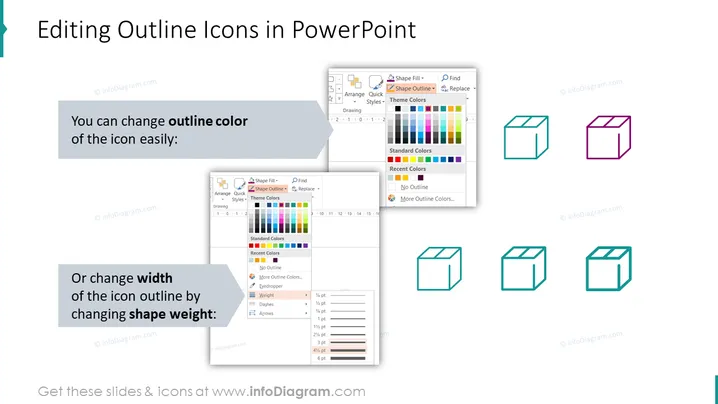
The slide is about customizing outline icons in PowerPoint. It provides instructions on how to change the outline color and change the width of the icon outline. Changing the outline color makes the icon fit brand colors or presentation themes. Adjusting the icon outline's width can emphasize the icon or match with the presentation's design style.
Graphical Look
- Title text "Editing Outline Icons in PowerPoint" is in large font centered at the top.
- Two separate text boxes with instructions in bold: "You can change outline color of the icon easily:" and "Or change width of the icon outline by changing shape weight:"
- Four images of different PowerPoint tool menus showing the steps to change icon outline color and width.
- Six icons of a box shape, demonstrating the visual changes before and after editing outline color and width.
- The first icon set shows three versions of the icon with different colors.
- The second icon set shows four versions of the box icon with increasing outline width.
- The slide has a white background with a light shadow effect behind the icon sets and the PowerPoint tool images.
The slide has a clean and professional look with a white background and well-organized graphical elements. The icons and menu images are placed to visually associate with the corresponding textual instructions.
Use Cases
- Teaching a workshop on how to customize and enhance PowerPoint presentations.
- Providing a visual tutorial guide within a presentation design team for consistent icon usage.
- Offering step-by-step instructions during an educational webinar on PowerPoint skills.
- Enhancing corporate presentations by ensuring staff can align slide visuals with company branding guidelines.
How to Edit
How to edit text & colors

How to expand / shorten diagram

How to Replace Icons in infoDiagram PPT


