
Reviews
Sus gráficos añaden un toque agradable a mis presentaciones y recientemente los usé para una de mis reuniones generales. Su conjunto de herramientas añade profesionalismo a mis diapositivas. En lugar de usar imágenes prediseñadas estándar.
Necesitaba un aspecto fresco para algunas de mis diapositivas. Había intentado encontrar una forma de crear un efecto de pincel, de subrayar, acentuar, añadir algo de color y los marcadores escritos a mano fueron justo lo que necesitaba. Muy fácil de usar, fácil de ajustar el tamaño, cambiar el color. Fue una solución asequible y perfecta, y estoy feliz de recomendarla.
El aspecto nítido y limpio de los gráficos, y el hecho de que me permitiera editar y cambiar fácilmente los colores para que coincidieran con la plantilla fue mi principal razón para comprarlos.
Description
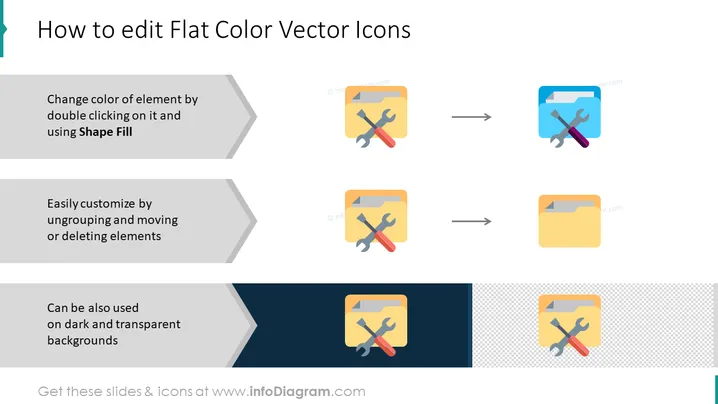
How to edit Flat Color Vector Icons
Slide Content
The slide instructs on editing flat color vector icons: changing an element's color by double-clicking and using "Shape Fill" implies altering the color attributes of an icon's particular part. Customizing by ungrouping, moving, or deleting elements suggests modifying the composition by adjusting or removing components of the icon. Lastly, it illustrates that these icons can also be used effectively against dark and transparent backgrounds, highlighting their versatility.
Graphical Look
- A large title in bold, dark text at the top center of the slide.
- Three sets of images and text blocks arranged horizontally across the slide.
- Each set contains a grey arrow pointing right, indicating a step or process.
- The images display a folder icon with a wrench and a screwdriver, signifying tools or settings.
- Each subsequent image shows the modification suggested by the accompanying text—changed color, moved elements, and dark/transparent backgrounds.
- Dark and light sections at the bottom suggest the icons' adaptability to different backgrounds.
- Solid colors and simple shapes provide a modern and clean aesthetic.
The slide has a straightforward layout with a clear instructional flow from left to right. The visuals are minimalistic, relying on flat design and a limited color palette to communicate the steps effectively.
Use Cases
- Teaching a workshop on graphic design to demonstrate icon editing techniques.
- Providing instructions during a company training on presentation design customization.
- Enhancing an instructional manual for a software application that includes icon editing features.
- Included in a marketing presentation to show brand adaptability across various media and backgrounds.
How to Edit
How to edit text & colors

How to expand / shorten diagram

How to Replace Icons in infoDiagram PPT


