
Reviews
Ihre Grafiken verleihen meinen Präsentationen eine nette Note, und ich habe sie kürzlich für eines meiner All-Hands-Meetings verwendet. Ihre Toolbox verleiht meinen Folien Professionalität, anstatt Standard-Clipart zu verwenden.
Ich brauchte einen neuen Blick auf einige meiner Folien. Ich habe versucht, einen Weg zu finden, einen Pinselschlag-Effekt zu erzielen, um zu unterstreichen, hervorzuheben, Farbe hinzuzufügen, und die handgeschriebenen Markierungen waren genau das Richtige. Sehr einfach zu bedienen, leicht in der Größe zu ändern, die Farbe zu ändern. Es war eine erschwingliche, perfekte Lösung und ich empfehle sie gerne weiter.
Die klare, saubere Optik der Grafiken und die Tatsache, dass ich die Farben leicht bearbeiten und an die Vorlage anpassen konnte, war mein Hauptgrund für den Kauf.
Description
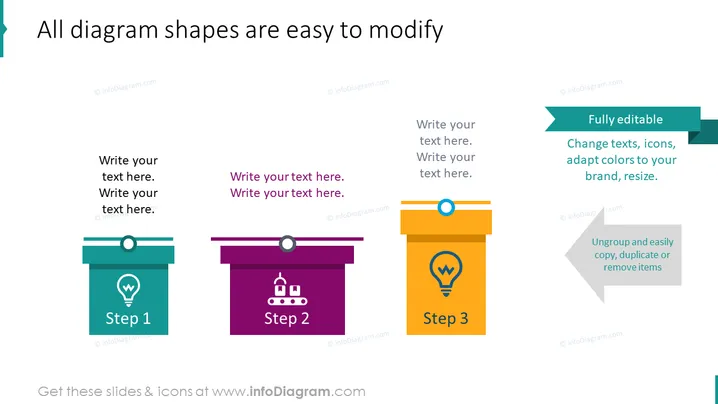
All diagram shapes are easy to modify
Slide Content
The PowerPoint slide showcases steps in a process with customizable features. "Step 1" has an associated light bulb icon symbolizing an idea or inception. "Step 2" reflects a progression or an intermediary phase with a factory belt icon suggesting assembly or development. "Step 3" includes a pinpoint icon indicating a destination or conclusion. The slide emphasizes the ease of editing: changing text, icons, adapting colors to a brand, resizing, and easy manipulation of items by ungrouping, copying, duplicating, or removing them.
Graphical Look
- The title "All diagram shapes are easy to modify" is in bold at the top of the slide.
- There are three banner-like shapes in teal, purple, and orange colors, horizontally arranged and representing steps.
- Each banner shape has a circular, outlined icon above it, and inside the banners are icons along with the text "Step 1", "Step 2", and "Step 3" in white.
- To the right, there is a larger dark teal ribbon with text "Fully editable" and two callout bubbles pointing to the banners with additional explanation text.
- The style of the graphics is flat and modern with a simple, clean design.
The slide has a neat and modern look, using a color-coded system to distinguish between different steps. The flat design icons and banners are visually clear and create a sense of progression from left to right.
Use Cases
- To demonstrate a step-by-step process or workflow in a business project or proposal.
- In training materials to visually explain how to modify or navigate a software or system interface.
- During sales or marketing presentations to highlight the benefits of a product, emphasizing its easy customization.
- In project management meetings to discuss and plan phases of project development or implementation.
How to Edit
How to edit text & colors

How to expand / shorten diagram

How to Replace Icons in infoDiagram PPT


