
Reviews
Your graphics add a nice touch to my presentations and I recently used them for one of my all-hands meetings. Your toolbox adds professionalism to my slides. Instead of using standard clipart.
I needed a fresh look at some of my slides. I've tried to find a way to create a paintbrush effect, to underline, accentuate, add some color and the handwritten markers were just the things. Very easy to use, easy to size, change the color. It was an affordable, perfect solution and I'm happy to recommend it.
The crisp, clean look of the graphics, and the fact that it allowed me to easily edit and change the colors to match the template was my main reason for purchasing them.
Description
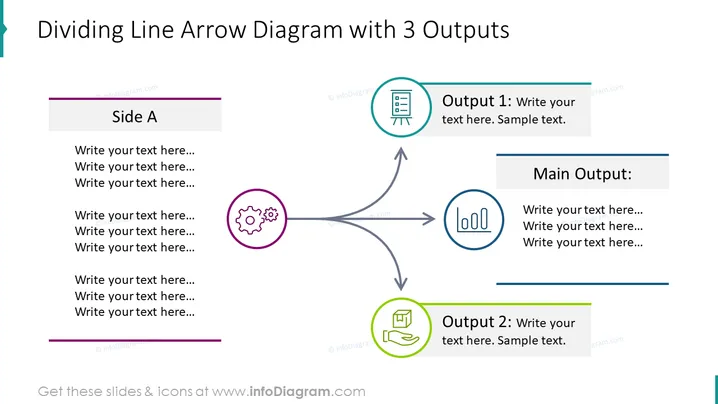
Dividing Line Arrow Diagram with 3 Outputs
Slide Content
The slide presents a process flow or decision-making framework with one starting point labeled "Side A" and three distinct outcomes or "Outputs." "Side A" seems to represent the input or initial condition leading to three possible responses or results, each labeled as "Output 1," "Main Output," and "Output 2." Placeholder texts suggest customization with actual content. Further elaboration could include details on what types of inputs might lead to the respective outputs or what decisions or processes ensure the flow from the input to each output.
Graphical Look
- A large arrow divides the slide horizontally, pointing from left to right.
- "Side A" is highlighted by a colored bar and a text box on the left for inserting descriptive text.
- Three circular icons with distinct colors and shapes are aligned with the outputs: a purple gear icon, a blue bar chart icon, and a green document icon.
- Each output is associated with a differently colored bar and a text box where details can be added alongside the icons.
- The main arrow splits into three smaller arrows, each leading to an output icon and text box.
- The background of the slide is white, providing a neutral backdrop to the colorful elements.
The slide is characterized by a clean, professional design with a simple color palette. Icons and text boxes are used to articulate different outputs, making the slide visually engaging and easy to interpret at a glance.
Use Cases
- Illustrating a workflow in a business process where a single input leads to multiple outputs or pathways.
- Presenting a decision tree in a management or strategy meeting to outline different potential strategies and their outcomes.
- Explaining branching scenarios in a training or educational setting to show different consequences of an action or decision.
- Summarizing project outcomes or results in a project management context, demonstrating various deliverables or performance metrics.
How to Edit
How to edit text & colors

How to expand / shorten diagram

How to Replace Icons in infoDiagram PPT


