
Reviews
Your graphics add a nice touch to my presentations and I recently used them for one of my all-hands meetings. Your toolbox adds professionalism to my slides. Instead of using standard clipart.
I needed a fresh look at some of my slides. I've tried to find a way to create a paintbrush effect, to underline, accentuate, add some color and the handwritten markers were just the things. Very easy to use, easy to size, change the color. It was an affordable, perfect solution and I'm happy to recommend it.
The crisp, clean look of the graphics, and the fact that it allowed me to easily edit and change the colors to match the template was my main reason for purchasing them.
Description
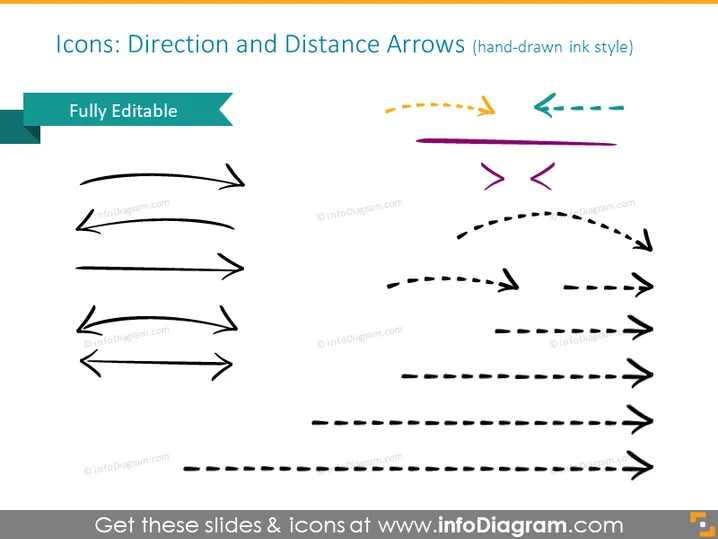
Icons: Direction and Distance Arrows (hand-drawn ink style)
Slide Content
The PowerPoint slide is titled "Icons: Direction and Distance Arrows (hand-drawn ink style)" and appears to provided a range of arrow icons indicative of various directions and distances. It states that the icons are "Fully Editable," which might suggest that users can customize these graphics to suit their presentation needs. The icons themselves are stylistically akin to ink drawings, which could add an informal or creative touch to presentations.
Graphical Look
- The slide has a light background.
- The title is in a large, bold, sans-serif font, aligned to the left.
- There is a tag-like shape in teal with the words "Fully Editable" in the upper left corner of the slide.
- Two rows of arrow icons are displayed.
- Arrows have different styles: solid, dashed, and with various curvatures.
- The arrow icons vary in color, with some in black and others in vibrant colors like orange, teal, and purple.
The slide has a minimalist design, focusing on the arrow icons which stand out against the light background due to their varying styles and colors. The overall impression is that of a clean and visually appealing resource for enhancing presentations.
Use Cases
- To visually represent process flow or directionality in a business process.
- To illustrate movement or progress in project stages during a project management presentation.
- To add a creative touch to slides when discussing pathways or strategies in marketing plans.
- To emphasize the concept of navigation or guidance in training or instructional materials.
How to Edit
How to edit text & colors

How to expand / shorten diagram

How to Replace Icons in infoDiagram PPT


