
Reviews
Your graphics add a nice touch to my presentations and I recently used them for one of my all-hands meetings. Your toolbox adds professionalism to my slides. Instead of using standard clipart.
I needed a fresh look at some of my slides. I've tried to find a way to create a paintbrush effect, to underline, accentuate, add some color and the handwritten markers were just the things. Very easy to use, easy to size, change the color. It was an affordable, perfect solution and I'm happy to recommend it.
The crisp, clean look of the graphics, and the fact that it allowed me to easily edit and change the colors to match the template was my main reason for purchasing them.
Description
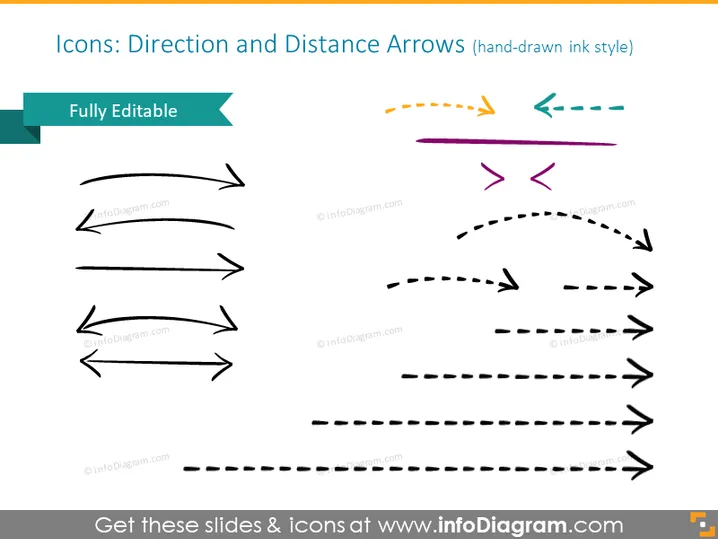
Icons: Direction and Distance Arrows (hand-drawn ink style)
Slide Content
The PowerPoint slide is titled "Icons: Direction and Distance Arrows (hand-drawn ink style)" and showcases a collection of arrow icons that symbolize various directional and movement concepts. The "Fully Editable" ribbon on the top left indicates that these elements can be customized. The arrows include straight, curved, and dashed styles, each possessing unique visual cues for direction and distance, suggesting flexibility in demonstrating motion or progress in a presentation. These arrows can be useful for representing different pathways, processes, or workflows.
Graphical Look
- The slide has a plain, white background, providing a clean and minimalistic canvas for the icons.
- A large, bold, black title at the top, written with a sans-serif typeface, clearly presents the slide's topic.
- A teal ribbon with the text "Fully Editable" overlays the upper left corner, implying the customizability of the content.
- There are eleven arrow icons displayed in two columns, varying in style - some are solid while others are dashed or dotted.
- Colors of the arrows range from black, gray, and a few in muted tones of yellow, teal, and purple.
- Arrows vary in shape and orientation; some are straight and point in a single direction, while others indicate two-way directions, curves, and detours.
- Each arrow icon is distinct but crafted to appear hand-drawn with minor variations and inequalities, simulating an ink style.
- The slide has a shadow effect at the bottom, giving it a layered appearance.
The overall look of the slide is clean and focused, with a well-organized array of hand-drawn style arrow icons that can draw the viewer's attention to the different directions and motions being represented.
Use Cases
- To illustrate various paths or options in decision-making processes during business strategy presentations.
- To depict project workflows and progress steps in project management meetings.
- To highlight movement or transition in marketing plans, such as customer journey maps or sales funnels.
- To enhance visual storytelling in educational or training materials by indicating sequences or timelines.
How to Edit
How to edit text & colors

How to expand / shorten diagram

How to Replace Icons in infoDiagram PPT


