
Reviews
Ihre Grafiken verleihen meinen Präsentationen eine nette Note, und ich habe sie kürzlich für eines meiner All-Hands-Meetings verwendet. Ihre Toolbox verleiht meinen Folien Professionalität, anstatt Standard-Clipart zu verwenden.
Ich brauchte einen neuen Blick auf einige meiner Folien. Ich habe versucht, einen Weg zu finden, einen Pinselschlag-Effekt zu erzielen, um zu unterstreichen, hervorzuheben, Farbe hinzuzufügen, und die handgeschriebenen Markierungen waren genau das Richtige. Sehr einfach zu bedienen, leicht in der Größe zu ändern, die Farbe zu ändern. Es war eine erschwingliche, perfekte Lösung und ich empfehle sie gerne weiter.
Die klare, saubere Optik der Grafiken und die Tatsache, dass ich die Farben leicht bearbeiten und an die Vorlage anpassen konnte, war mein Hauptgrund für den Kauf.
Description
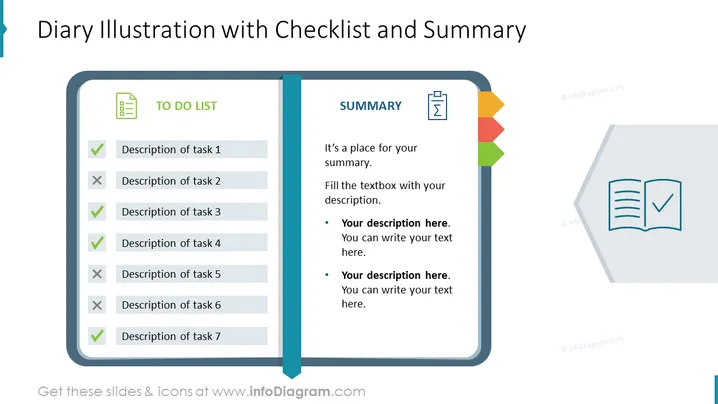
Diary Illustration with Checklist and Summary
Slide Content
The PowerPoint slide titled "Diary Illustration with Checklist and Summary" presents a stylized, simulated diary spread with two sections. On the left, the "TO DO LIST" displays seven tasks, marked with checkmarks or crosses to denote completion status. This indicates a tracking feature for tasks, showing which are done and which are pending. On the right, the "SUMMARY" section entails placeholders for a textual summary, with bullet points available for additional details or notes that complement the to-do list.
Graphical Look
- A two-page diary representation with a slight 3D effect dominates the slide, simulating a physical notebook.
- The left page of the diary showcases a to-do list with lines of text, each preceded by icons: a green checkmark for completed tasks and a red X for incomplete tasks.
- The right page is dedicated to the summary with a clipboard icon at the top, and multiple colored tabs give a tactile, organized feel.
- Above the diary, a banner with the slide's title creates a clear and direct subject header.
- The background color is a plain, light gradient, ensuring that the diary illustration stands out.
The visual design of the slide blends simplicity with clear structural elements, highlighting the content efficiently. The use of color-coded tabs and icons effectively conveys information hierarchy and status.
Use Cases
- To report the status of tasks during project meetings, distinguishing between completed and pending items.
- For personal task management presentations, providing a visual and organized way of showcasing to-dos and summaries.
- In educational settings, to teach task management or to visualize assignments and summaries from a course syllabus.
- To serve as a template during time management or productivity workshops, helping attendees outline their plans and actions.
How to Edit
How to edit text & colors

How to expand / shorten diagram

How to Replace Icons in infoDiagram PPT


