

Your graphics add a nice touch to my presentations and I recently used them for one of my all-hands meetings. Your toolbox adds professionalism to my slides. Instead of using standard clipart.
Claude Jones, Director of Engineer, @Walmartlabs, USA

Your graphics add a nice touch to my presentations and I recently used them for one of my all-hands meetings. Your toolbox adds professionalism to my slides. Instead of using standard clipart.
Claude Jones, Director of Engineer, @Walmartlabs, USA
I needed a fresh look at some of my slides. I've tried to find a way to create a paintbrush effect, to underline, accentuate, add some color and the handwritten markers were just the things. Very easy to use, easy to size, change the color. It was an affordable, perfect solution and I'm happy to recommend it.
Anonymous, US
The crisp, clean look of the graphics, and the fact that it allowed me to easily edit and change the colors to match the template was my main reason for purchasing them.
Brandie Jenkins, E-learning Developer, USA
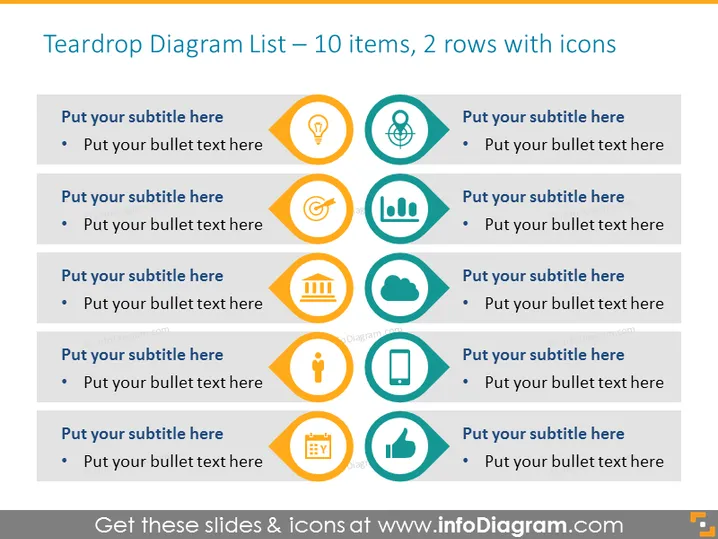
The slide displays a Teardrop Diagram List with 10 items spread across 2 rows, each accompanied by a distinct icon. The items are organized into pairs, with each pair containing a spot for a subtitle and additional bullet text. These elements are designed for users to input specific information related to a variety of topics, indicated by the icons representing different themes such as innovation, teamwork, finance, and success among others. Each icon is encapsulated in a teardrop-shaped bubble, emphasizing the unique aspect or feature it is intended to convey.
The overall look of the slide is sleek and professional, with a strong visual hierarchy that guides the viewer's attention systematically from left to right. The color palette is limited but vibrant, ensuring that the content stands out clearly against the background.



