
Reviews
Your graphics add a nice touch to my presentations and I recently used them for one of my all-hands meetings. Your toolbox adds professionalism to my slides. Instead of using standard clipart.
I needed a fresh look at some of my slides. I've tried to find a way to create a paintbrush effect, to underline, accentuate, add some color and the handwritten markers were just the things. Very easy to use, easy to size, change the color. It was an affordable, perfect solution and I'm happy to recommend it.
The crisp, clean look of the graphics, and the fact that it allowed me to easily edit and change the colors to match the template was my main reason for purchasing them.
Description
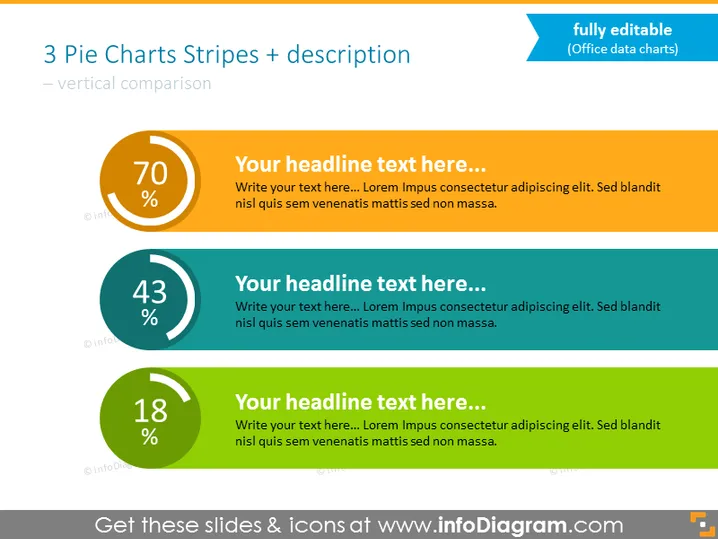
3 Pie Charts Stripes + description
Slide Content
The PowerPoint slide presents a comparison of three statistical values using pie charts and accompanying text. Each chart has a large percentage in the center, suggesting they are measuring parts of a whole. The first chart is orange with 70%, the second is teal with 43%, and the third is green with 18%. The pie charts are paired with placeholder headlines and text, indicative of a template that can be customized with specific data and descriptions. The three sections offer a clear visual hierarchy for comparing the percentage values and provide space for descriptive content.
Graphical Look
- A bold title in dark blue text at the top of the slide states '3 Pie Charts Stripes + description' with a subtitle '— vertical comparison' in a lighter blue color.
- Three pie charts in ascending order with graphical representations of percentages: 70% in orange, 43% in teal, and 18% in green.
- Each pie chart is accompanied by a text box to its right with a placeholder headline in dark blue and descriptive text in gray.
- On the top right, a text box with the phrase 'fully editable (Office data charts)' is accompanied by a styleized arrow, indicating the charts can be customized.
The slide's overall look is clean and modern with a color scheme that effectively differentiates between the three data points. The use of contrasting colors complements the visual hierarchy intended for the comparison of data.
Use Cases
- Presenting quantitative data comparisons in business meetings or reports.
- Highlighting key performance indicators (KPIs) across different segments or time periods.
- Showcasing market share, sales percentages, or other statistical data during presentations.
- Using as a template in educational settings to teach data visualization techniques.
How to Edit
How to edit text & colors

How to expand / shorten diagram

How to Replace Icons in infoDiagram PPT


