
Reviews
Your graphics add a nice touch to my presentations and I recently used them for one of my all-hands meetings. Your toolbox adds professionalism to my slides. Instead of using standard clipart.
I needed a fresh look at some of my slides. I've tried to find a way to create a paintbrush effect, to underline, accentuate, add some color and the handwritten markers were just the things. Very easy to use, easy to size, change the color. It was an affordable, perfect solution and I'm happy to recommend it.
The crisp, clean look of the graphics, and the fact that it allowed me to easily edit and change the colors to match the template was my main reason for purchasing them.
Description
Table with Ribbon Title
Slide Content
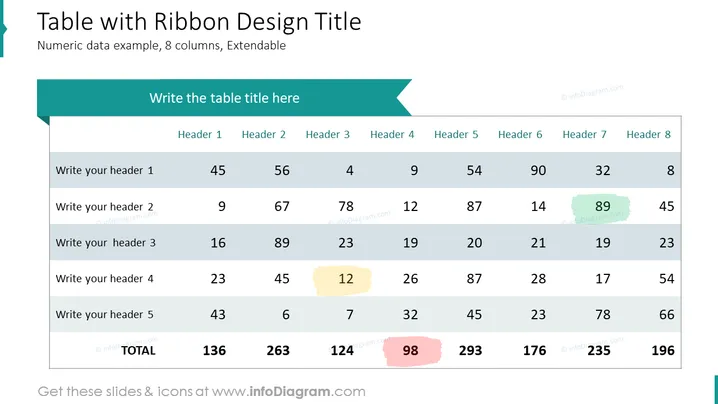
The slide displays a table titled 'Table name' under a stylish ribbon, featuring a series of headers and corresponding data rows. Each row begins with a placeholder for text followed by numerical data, such as '45', '56', etc. Several cells are highlighted in different colors, which might be used to emphasize particular data points or categories, indicating their significance within the table. This format is typical for presenting data comparisons, status reports, or specific metrics in a straightforward, organized, and easily digestible manner.
Graphical Look
- A large teal ribbon graphic at the top contains the words "Table name" in white text.
- Below the ribbon is a table with a light background and a white border.
- The table headers are in dark text and appear across the first row of the table.
- Six rows contain data with placeholders saying "Your text" in the first column and numerical data in the succeeding columns.
- Some cells have numerical data highlighted with colors: soft purple and dark teal.
The slide has a clean and modern design, with the ribbon adding visual interest and a point of focus. The use of color highlighting within the table effectively draws attention to key data points.
Use Cases
- Presenting financial results or budget forecasts in a corporate environment.
- Comparing sales figures or performance data across different departments or time periods.
- Displaying research statistics or survey results in a presentation for stakeholders.
- Summarizing key performance indicators (KPIs) in a scorecard format during business reviews.
How to Edit
How to edit text & colors

How to expand / shorten diagram

How to Replace Icons in infoDiagram PPT


