

Your graphics add a nice touch to my presentations and I recently used them for one of my all-hands meetings. Your toolbox adds professionalism to my slides. Instead of using standard clipart.
Claude Jones, Director of Engineer, @Walmartlabs, USA

Your graphics add a nice touch to my presentations and I recently used them for one of my all-hands meetings. Your toolbox adds professionalism to my slides. Instead of using standard clipart.
Claude Jones, Director of Engineer, @Walmartlabs, USA
I needed a fresh look at some of my slides. I've tried to find a way to create a paintbrush effect, to underline, accentuate, add some color and the handwritten markers were just the things. Very easy to use, easy to size, change the color. It was an affordable, perfect solution and I'm happy to recommend it.
Anonymous, US
The crisp, clean look of the graphics, and the fact that it allowed me to easily edit and change the colors to match the template was my main reason for purchasing them.
Brandie Jenkins, E-learning Developer, USA
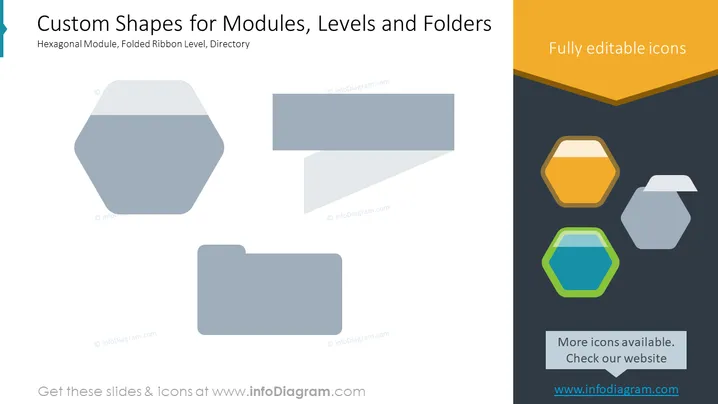
The slide presents a variety of custom shapes intended to represent abstract concepts like modules, levels, and folders. The "Hexagonal Module" could symbolize a distinct component or part of a system, emphasizing its interconnectivity or standalone functionality. The "Folded Ribbon Level" might denote hierarchical stages or progression steps, suggesting a sequential flow or status. The "Directory" likely stands for organizational structures or storage systems, indicating categorization or archiving.
The slide has a clean, professional design with a clear contrast between the faded, larger icons on the left and the smaller, colorful icons on the right. The use of hexagons and folder shapes introduces a theme of organization and structure.



