
Reviews
Ihre Grafiken verleihen meinen Präsentationen eine nette Note, und ich habe sie kürzlich für eines meiner All-Hands-Meetings verwendet. Ihre Toolbox verleiht meinen Folien Professionalität, anstatt Standard-Clipart zu verwenden.
Ich brauchte einen neuen Blick auf einige meiner Folien. Ich habe versucht, einen Weg zu finden, einen Pinselschlag-Effekt zu erzielen, um zu unterstreichen, hervorzuheben, Farbe hinzuzufügen, und die handgeschriebenen Markierungen waren genau das Richtige. Sehr einfach zu bedienen, leicht in der Größe zu ändern, die Farbe zu ändern. Es war eine erschwingliche, perfekte Lösung und ich empfehle sie gerne weiter.
Die klare, saubere Optik der Grafiken und die Tatsache, dass ich die Farben leicht bearbeiten und an die Vorlage anpassen konnte, war mein Hauptgrund für den Kauf.
Description
Creating own labels - transparent
Slide Content
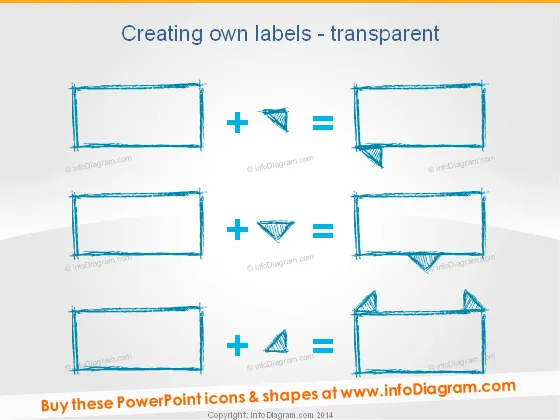
The slide is titled "Creating own labels - transparent" and illustrates the process of creating custom label designs using transparent elements. It showcases three stages each for building a unique label by adding a different geometric shape to a basic rectangular frame, resulting in three distinct label styles. Each of these stages is a step in combining basic shapes to create more complex and customized graphics, which can be used for various labeling needs within documents, presentations, or digital platforms.
Graphical Look
- The slide has a white background.
- The title is placed at the top of the slide using dark text.
- There are three sets of images arranged horizontally across the slide.
- Each set features a rectangular frame with scribbled borders.
- In the center of each set, there is a plus sign indicating addition.
- Each set includes a geometric shape to the right of the plus sign: a triangle, an inverted triangle, or a chevron.
- The result of adding the geometric shape to the frame appears as a composite label on the right side.
- The shapes are created with a sketch-like, hand-drawn aesthetic.
- All elements on the slide are in different shades of blue, providing a monochromatic theme.
The overall look is minimalist and educational, using simple shapes to convey the process of design layering. The hand-drawn style of the icons adds an informal, creative touch to the slide.
Use Cases
- Teaching a workshop or class about basic graphic design principles and how to create simple yet effective visual elements.
- Demonstrating the process of brand identity creation, specifically how to design unique labels or logos, in a marketing presentation.
- Providing a visual aid during a team meeting discussing the redesign of packaging and labeling for a company's product line.
- Illustrating the combination of shapes to build more intricate designs in an instructional presentation for a DIY project or craft activity.
How to Edit
How to edit text & colors

How to expand / shorten diagram

How to Replace Icons in infoDiagram PPT


