
Reviews
Your graphics add a nice touch to my presentations and I recently used them for one of my all-hands meetings. Your toolbox adds professionalism to my slides. Instead of using standard clipart.
I needed a fresh look at some of my slides. I've tried to find a way to create a paintbrush effect, to underline, accentuate, add some color and the handwritten markers were just the things. Very easy to use, easy to size, change the color. It was an affordable, perfect solution and I'm happy to recommend it.
The crisp, clean look of the graphics, and the fact that it allowed me to easily edit and change the colors to match the template was my main reason for purchasing them.
Description
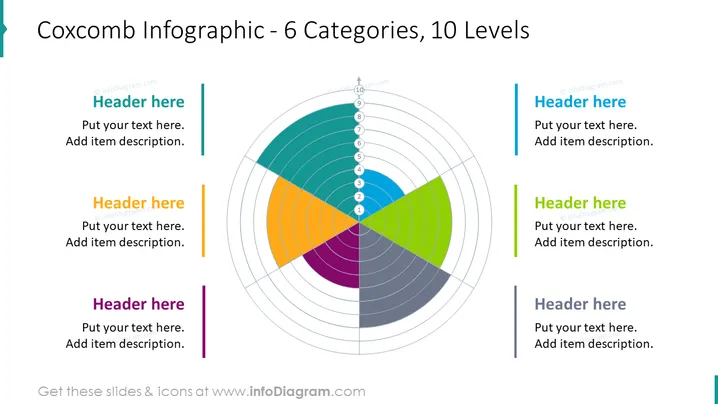
Coxcomb Infographic - 6 Categories, 10 Levels
Slide Content
The slide presents a Coxcomb chart, also known as a polar area diagram, which is divided into 6 colored categories, each containing 10 levels to represent data proportionally within a category. Accompanying the chart, there are placeholders for six headers and descriptive texts, presumably to elaborate on each category of the Coxcomb chart. The infographic is ideal for displaying how segments of a whole can vary not only by proportion but also over certain levels or degrees of importance or magnitude.
Graphical Look
- Central Coxcomb chart with distinct colored slices for each category.
- The chart has concentric circles representing 10 levels, providing a layered view resembling a topographical map.
- The chart is symmetrical along a central vertical axis.
- Six text placeholders with a colored line to the left of each, matching the colors in the chart, suggest spaces for category titles and descriptions.
- Colored lines extend from the boxes on each side towards the central chart, linking the text placeholders to their corresponding slices in the chart.
The slide overall has a modern and clean design, with a balanced use of color and white space to emphasize the visualization. The symmetric arrangement around the central Coxcomb chart creates a harmonious and easy-to-follow layout.
Use Cases
- Comparing the distribution of resources or outcomes across different organizational departments or teams.
- Representing survey or market research data to show how different demographics respond across various metrics.
- Visualizing performance metrics for different products or services within a company.
- Displaying health and safety statistics in various categories in an industrial or public health setting.
How to Edit
How to edit text & colors

How to expand / shorten diagram

How to Replace Icons in infoDiagram PPT


