
Reviews
Your graphics add a nice touch to my presentations and I recently used them for one of my all-hands meetings. Your toolbox adds professionalism to my slides. Instead of using standard clipart.
I needed a fresh look at some of my slides. I've tried to find a way to create a paintbrush effect, to underline, accentuate, add some color and the handwritten markers were just the things. Very easy to use, easy to size, change the color. It was an affordable, perfect solution and I'm happy to recommend it.
The crisp, clean look of the graphics, and the fact that it allowed me to easily edit and change the colors to match the template was my main reason for purchasing them.
Description
Company roles and departments structure
Slide Content
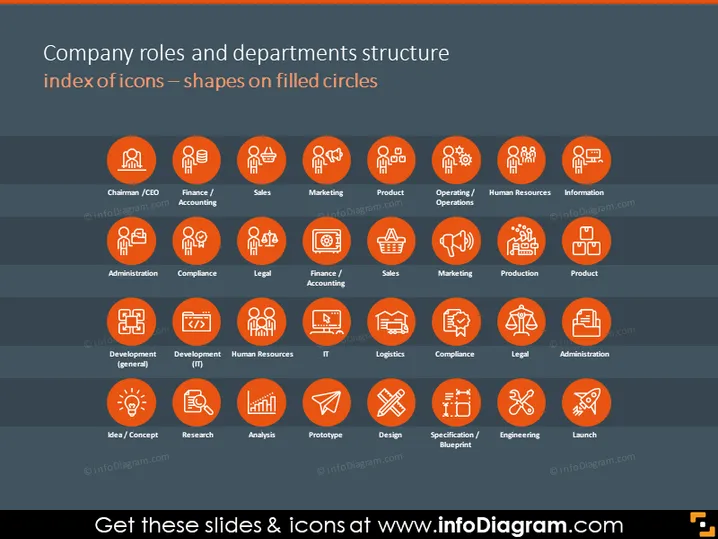
The PowerPoint slide titled "Company roles and departments structure index of icons — shapes on filled circles" depicts a variety of icons representing different company roles and departments. Each icon is enclosed within an orange circle, and the associated role or department name is listed below it. The roles include Chairman/CEO, Finance/Accounting, Human Resources, and IT, among others. The slide is structured in a grid format, with icons organized in rows and represents the comprehensive framework of a corporate organizational structure, with each icon visually delineating a specific function essential in a business environment.
Graphical Look
- The background color of the slide is dark gray.
- Each icon is white and set on an orange-filled circular background.
- The icons are uniformly sized and evenly spaced in a grid layout across the slide.
- The font color for the role or department names is white, providing a contrast with the dark background.
- Each orange circle with its respective icon and text forms a distinct element within the grid.
- Visually, the slide has a modern, clean appearance with a consistent use of color and iconography to represent each topic.
The overall look of the slide is sleek and professional, with a clear hierarchy and structure that facilitates easy comprehension. Each icon is distinct yet part of a unified visual theme that emphasizes order and clarity.
Use Cases
- To visually represent the company's organizational structure during internal meetings.
- As part of an orientation or training presentation to introduce new employees to the company's departments and roles.
- In a business proposal or pitch to provide investors or partners with an overview of the company's internal roles and structure.
- During an annual general meeting to showcase the alignment of roles and responsibilities within the organization.
How to Edit
How to edit text & colors

How to expand / shorten diagram

How to Replace Icons in infoDiagram PPT


