
Reviews
Your graphics add a nice touch to my presentations and I recently used them for one of my all-hands meetings. Your toolbox adds professionalism to my slides. Instead of using standard clipart.
I needed a fresh look at some of my slides. I've tried to find a way to create a paintbrush effect, to underline, accentuate, add some color and the handwritten markers were just the things. Very easy to use, easy to size, change the color. It was an affordable, perfect solution and I'm happy to recommend it.
The crisp, clean look of the graphics, and the fact that it allowed me to easily edit and change the colors to match the template was my main reason for purchasing them.
Description
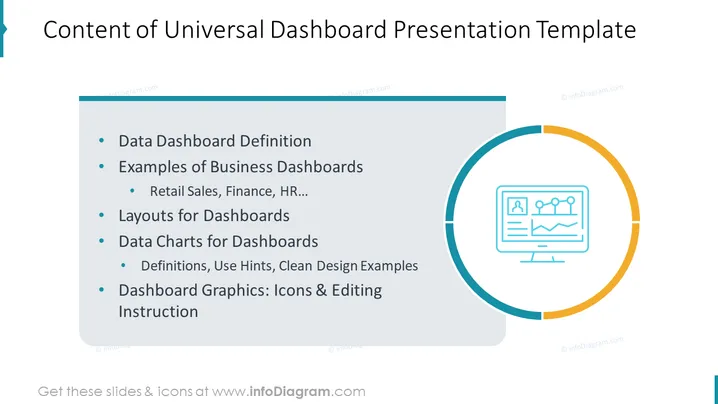
Content of Universal Dashboard Presentation Template
Slide Content
The slide outlines the contents of a Universal Dashboard Presentation Template, covering: Data Dashboard Definition - a brief overview of what constitutes a dashboard; Examples of Business Dashboards - illustrating different types such as Retail Sales, Finance, HR, and more; Layouts for Dashboards - discussing potential arrangements; Data Charts for Dashboards - highlighting definitions, use hints, and showcasing clean design examples; Dashboard Graphics: Icons & Editing - exploring visual elements and customization techniques.
Graphical Look
- The slide features a clean and modern design with plenty of white space.
- At the top left corner is a blue bookmark-like shape partially overlaying the slide border.
- A large title is centered at the top in bold, black font.
- Below the title is a bulleted list of items, with some items containing nested, indented bullets.
- To the right, a large circular icon incorporates a computer monitor graphic with a dashboard display, encapsulated by a partially complete circular line that alternates between blue, grey, and orange segments.
- The icon and the circles are used to visually balance the text on the left.
- The overall color scheme is blue, grey, orange, and black, maintaining a professional and thematic continuity.
The slide presents a professional and visually balanced appearance, with a clear division between the textual content on the left and a graphical representation on the right.
Use Cases
- Introducing a workshop or training session on creating effective dashboards for business intelligence.
- Kicking off a section in a presentation that delves into the specifics of designing and utilizing dashboards.
- Providing an overview of a dashboard software or template package to potential clients or stakeholders.
- Organizing content for a webinar that teaches participants how to create dashboards that communicate data clearly.
How to Edit
How to edit text & colors

How to expand / shorten diagram

How to Replace Icons in infoDiagram PPT


